
Lopux-VPN on Android: from the download to the first connection
This guide is for someone starting with nothing: no app, no account. It walks the whole path on an Android phone — download the app, install it past two warnings that are supposed to appear, create an account, get your config, import it, and connect. It takes about ten minutes.
The screenshots show the English interface on a stock Android 16. The app, the site and the portal all speak six languages — pick yours with the language button at the bottom of the app's first screen, or the EN button on a web page. Phone makers change the look of system screens, so yours may differ in colour and wording; the names of the buttons are what to go by.
1. Download the app
Open lopux.net, go to Download and find the Android card. There is one build, for ARM — which is every ordinary phone.
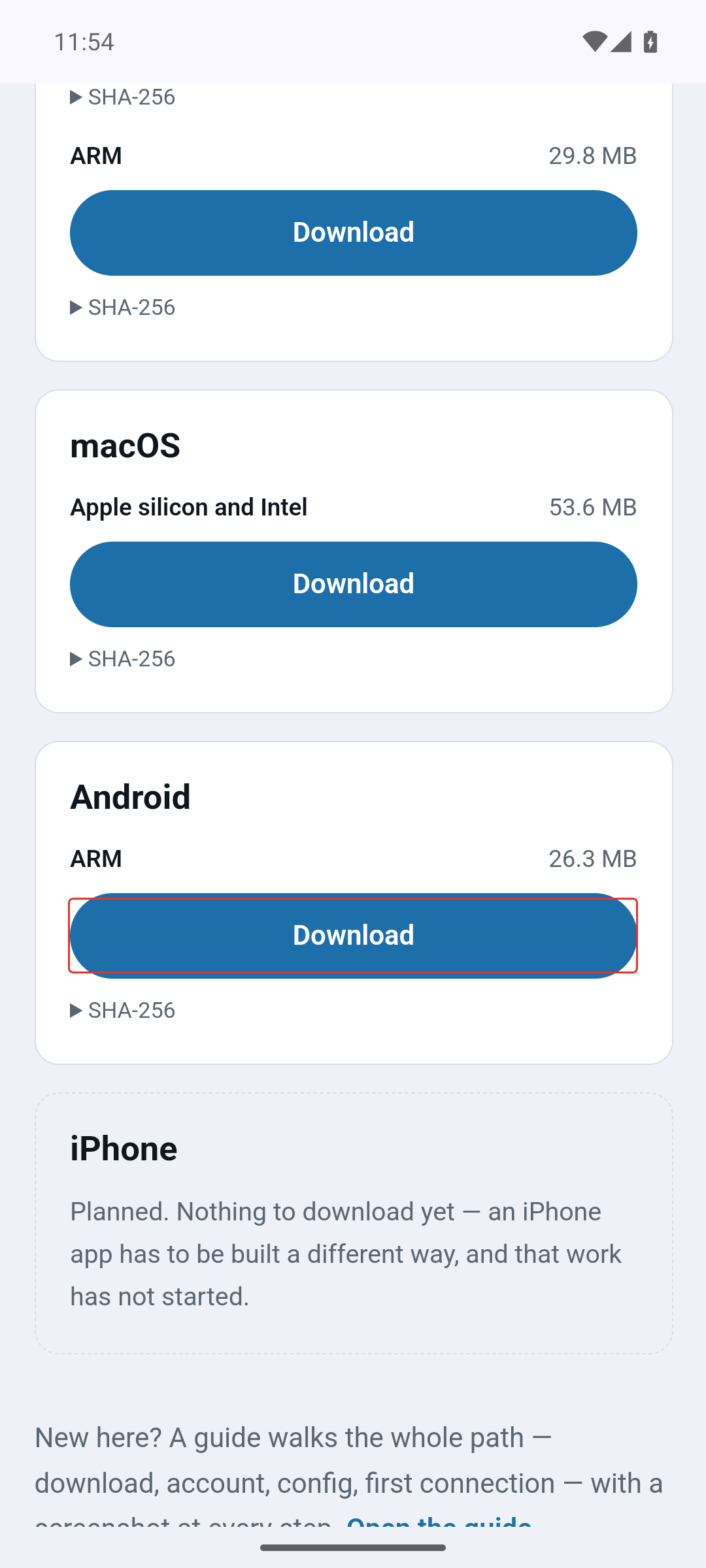
The app does not come from Google Play. That is the point of the project, not an oversight: a store can be told to remove an app, and in the countries this is built for, that is what happens.
2. The download itself is quiet
The file starts downloading straight away; the browser only says so.
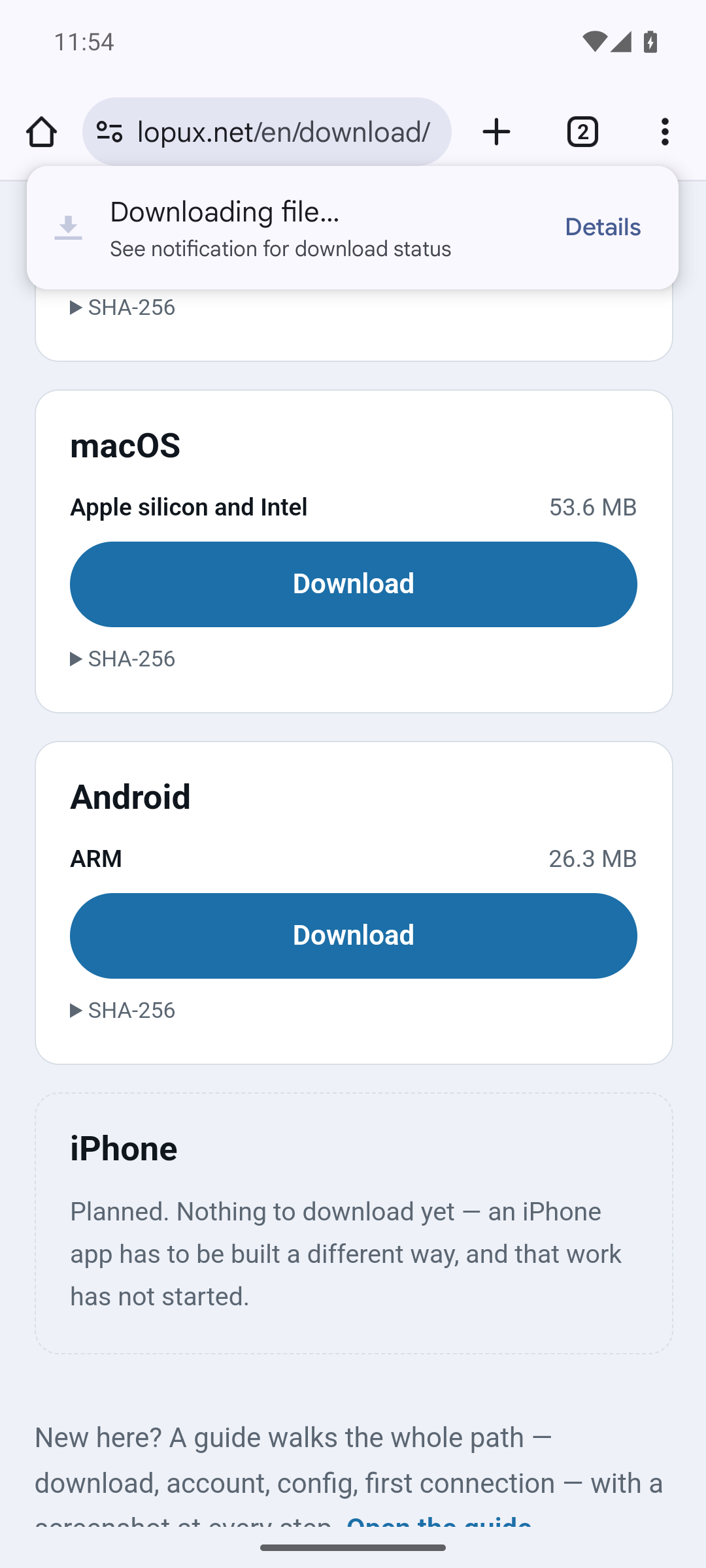
Older versions of Chrome warned that an .apk might be harmful and made you press Download anyway. The current one does not — do not go looking for a warning that will not come.
If you would rather be certain the file is the one we published, the Download page lists a SHA-256 for it, and any checksum app can compute the same value.
3. Android will refuse to install it — once
Open the downloaded file: in the browser's menu, Downloads, then tap it. Android stops with "your phone currently isn't allowed to install unknown apps from this source", and offers Settings.
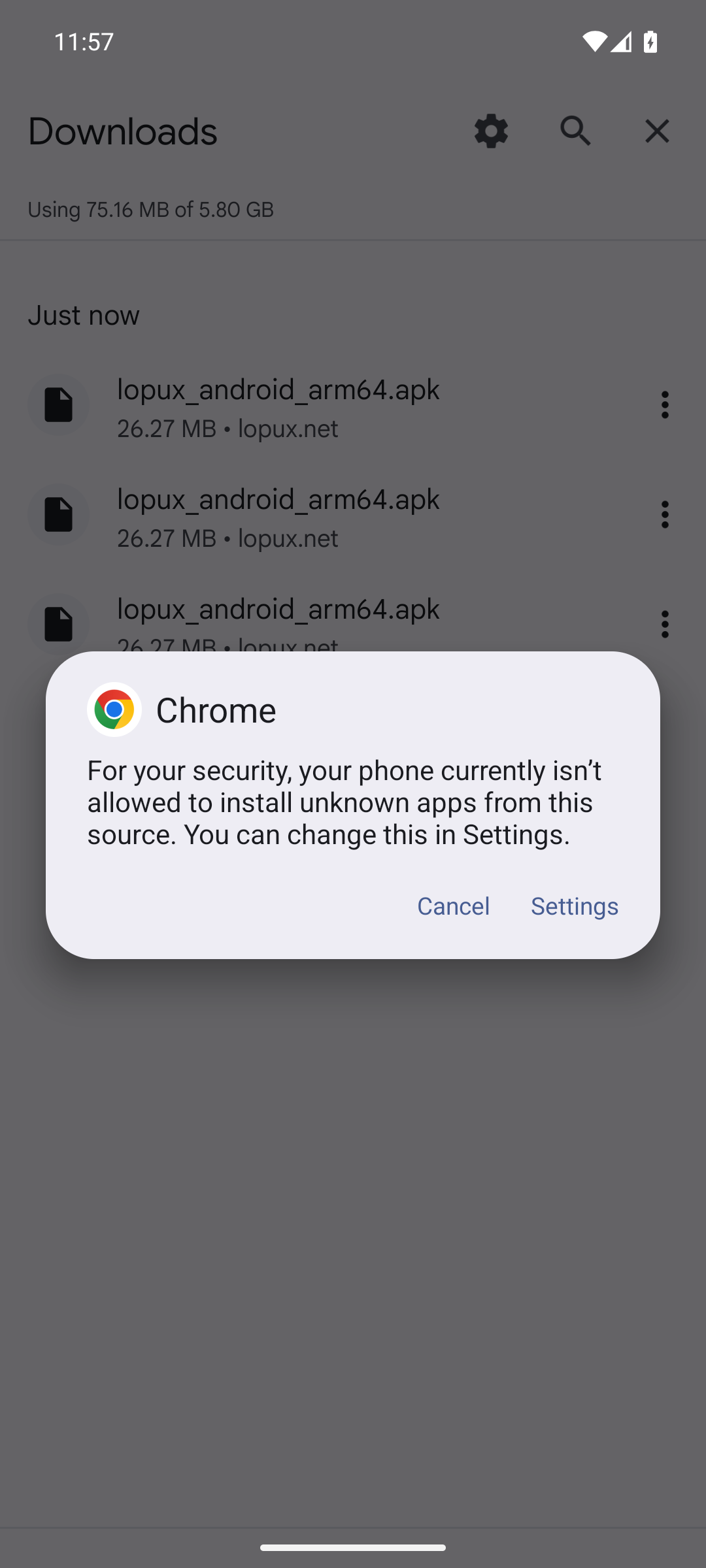
Read the sentence carefully: it is about a source, not about our app. Android asks this for whichever app is opening the file — the browser here, the Files app if you find the file later. You are allowing that app to install things, and you can switch it back off afterwards.
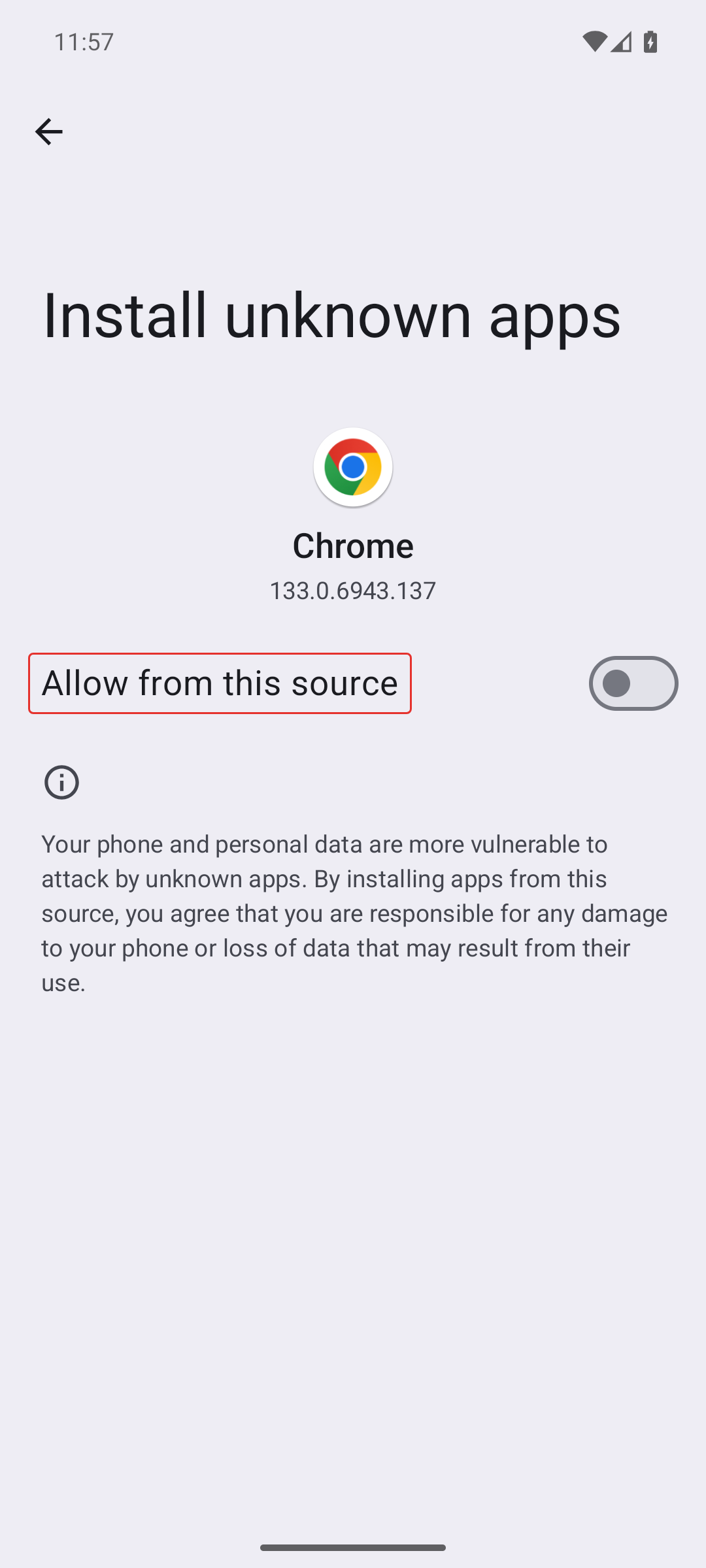
Press Settings, then turn on Allow from this source, and go back.
4. Install it, past a second warning
Open the file again. This time Android asks the ordinary question.
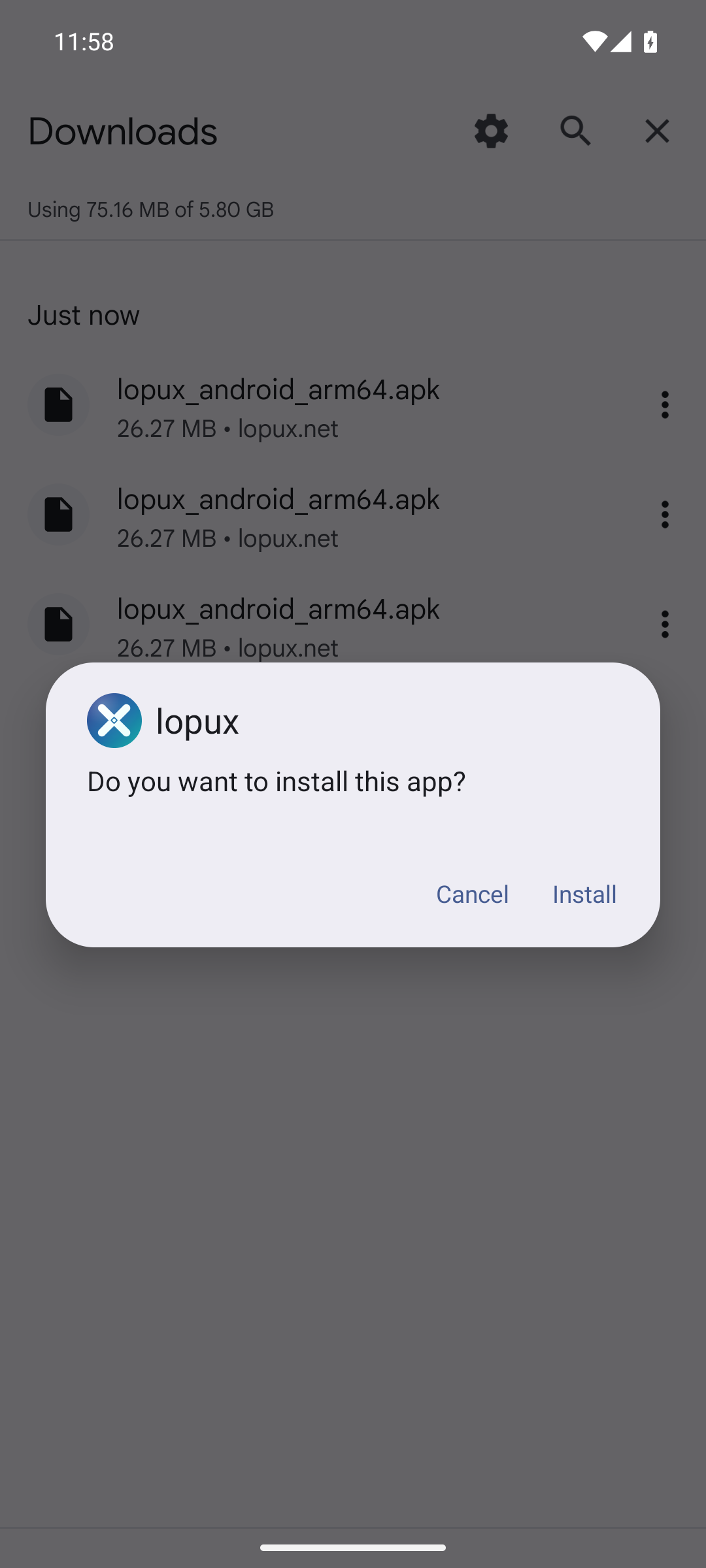
Press Install — and on a phone with Google's services you meet the second gate: Play Protect blocks the app with "Play Protect hasn't seen an app from this developer before. It may be unsafe."
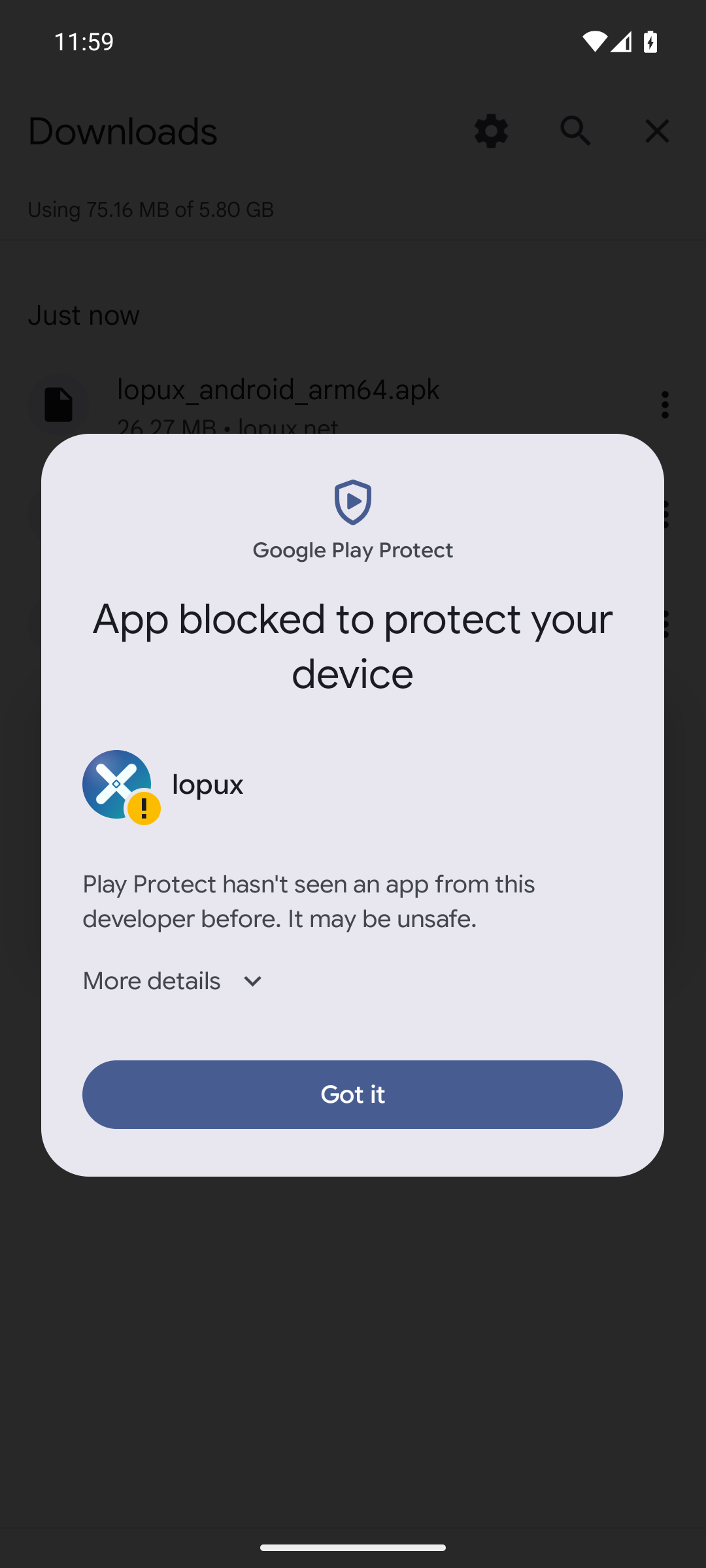
That is exactly what it says and nothing more. Play Protect vouches for apps it has seen many copies of; ours is downloaded from our own site by comparatively few people, so it has not. The dialog offers one button — Got it — which cancels.
Press More details, and a line appears under the warning: Install anyway. It is text, not a button, and it is easy to miss.
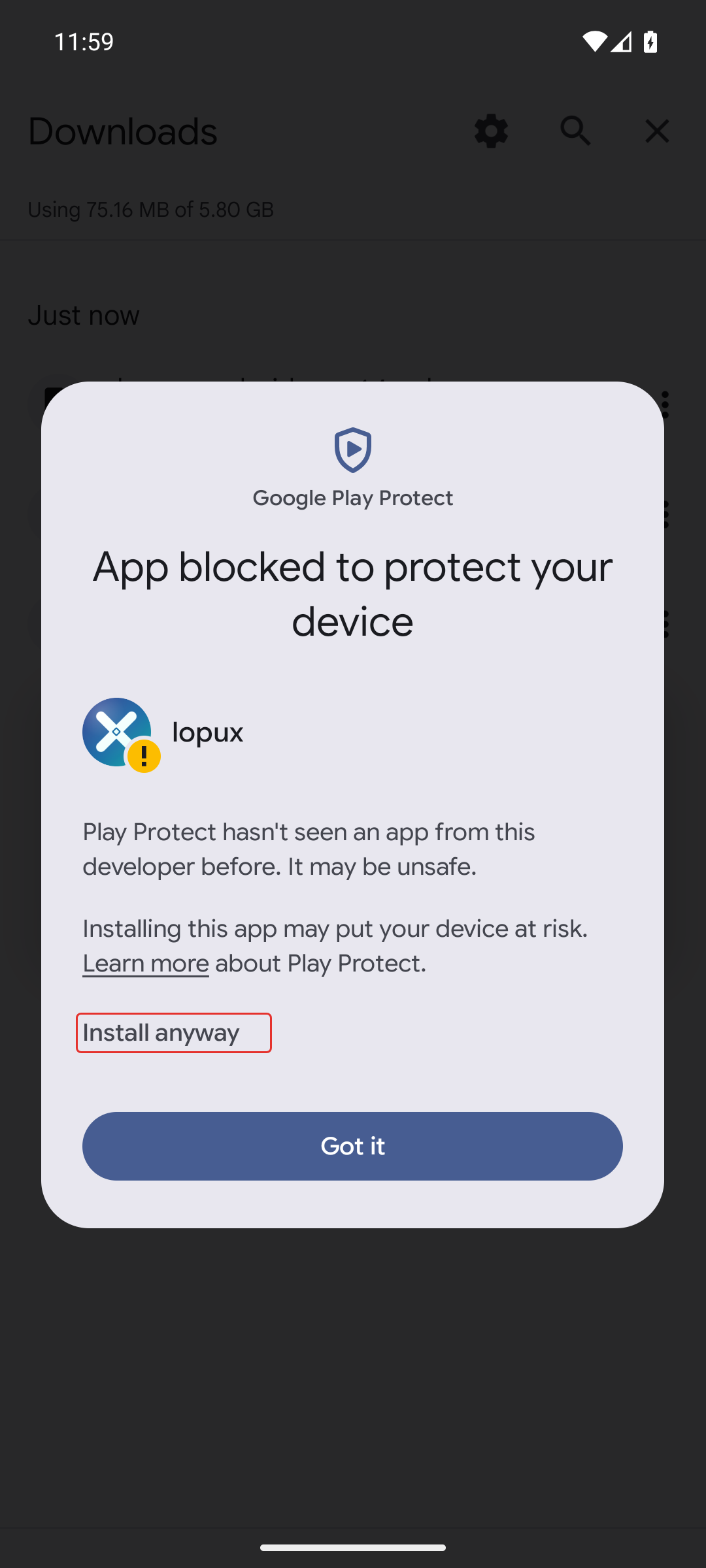
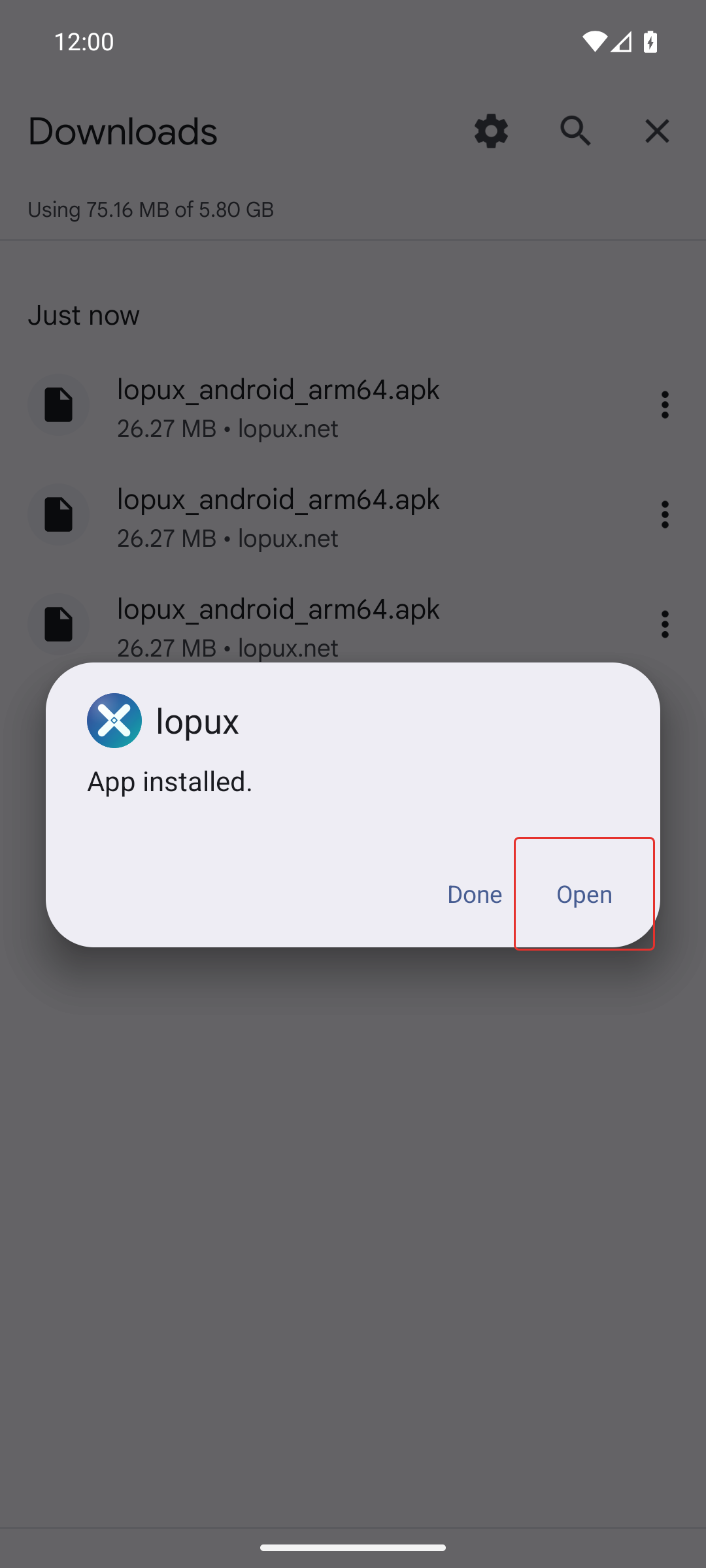
Press it, and the install goes through. Then press Open.
5. Create an account
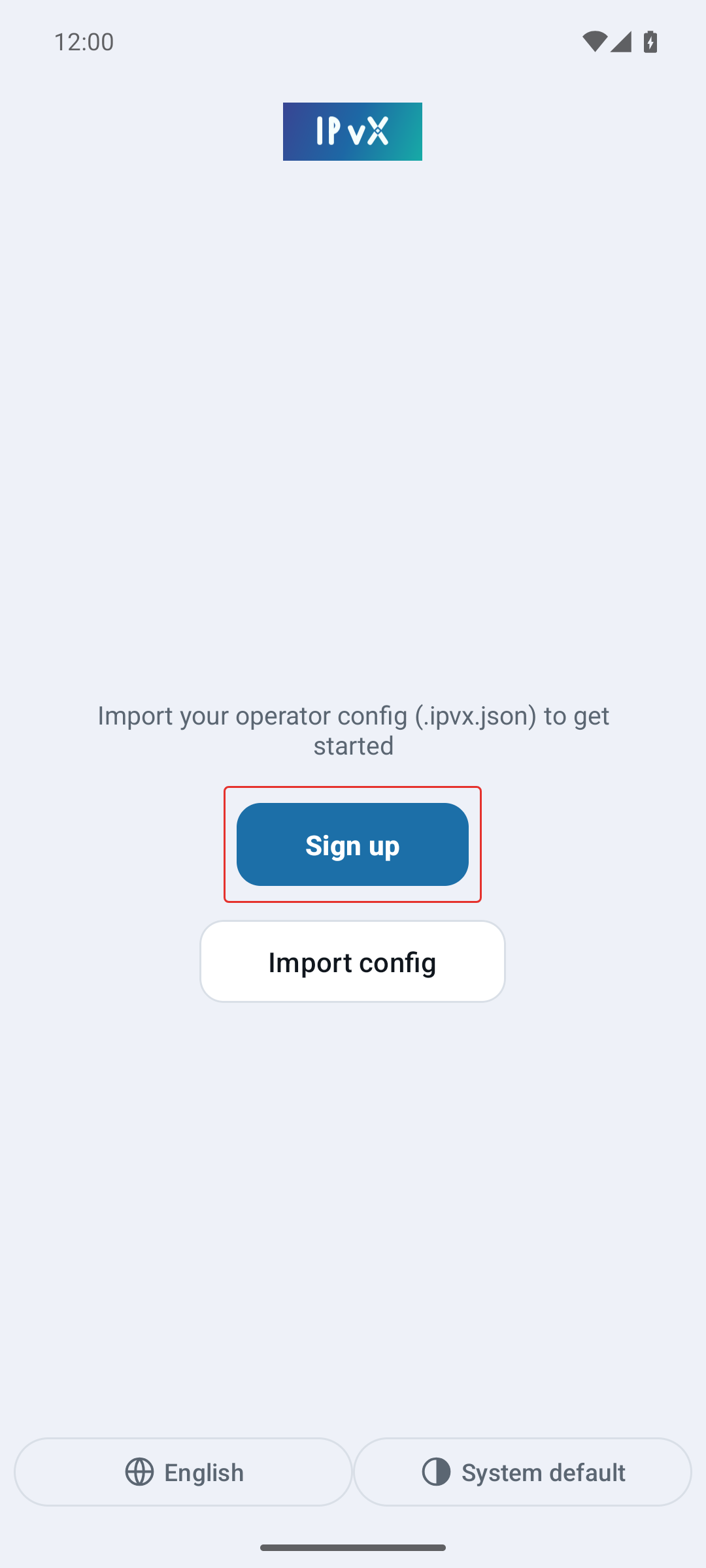
The app registers nobody itself. The account is made on the client portal, which also issues the file the app needs. Press Sign up — it opens the portal in your browser.
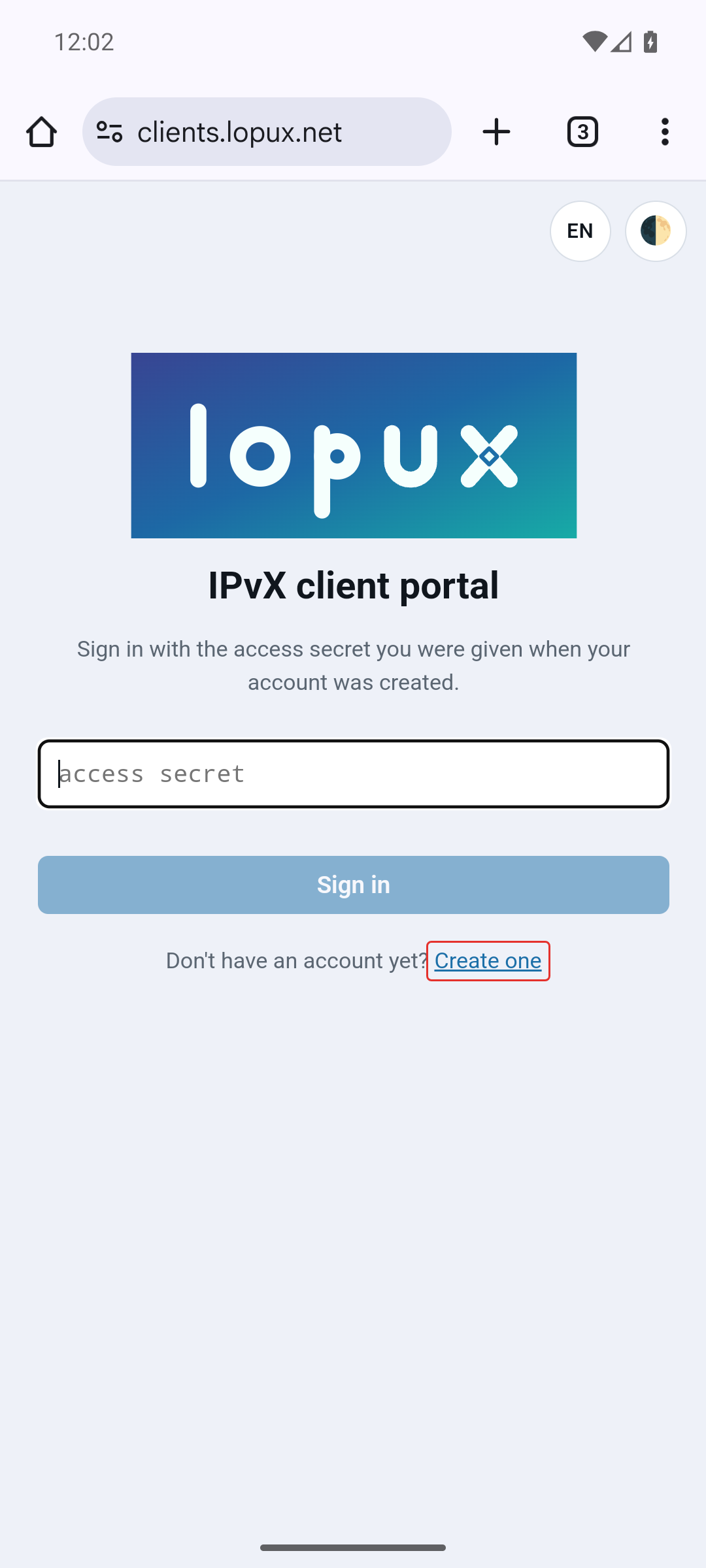
You land on the sign-in page. You have no secret yet, so press Create one.
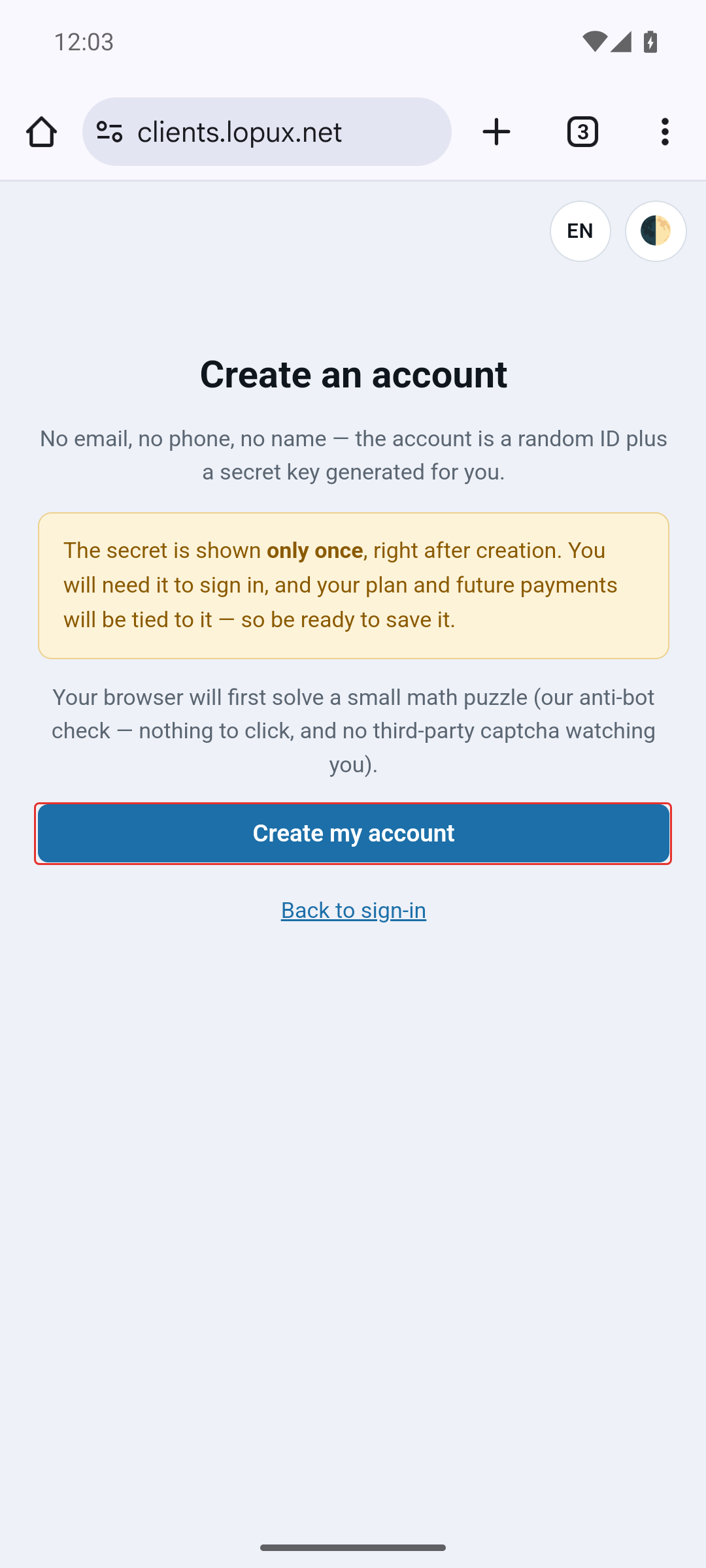
Read the note before pressing the button: no email, no phone, no name. The account is a random ID plus a secret, and the secret is shown once. Press Create my account; your browser then solves a small puzzle for a few seconds, which is the anti-bot check.
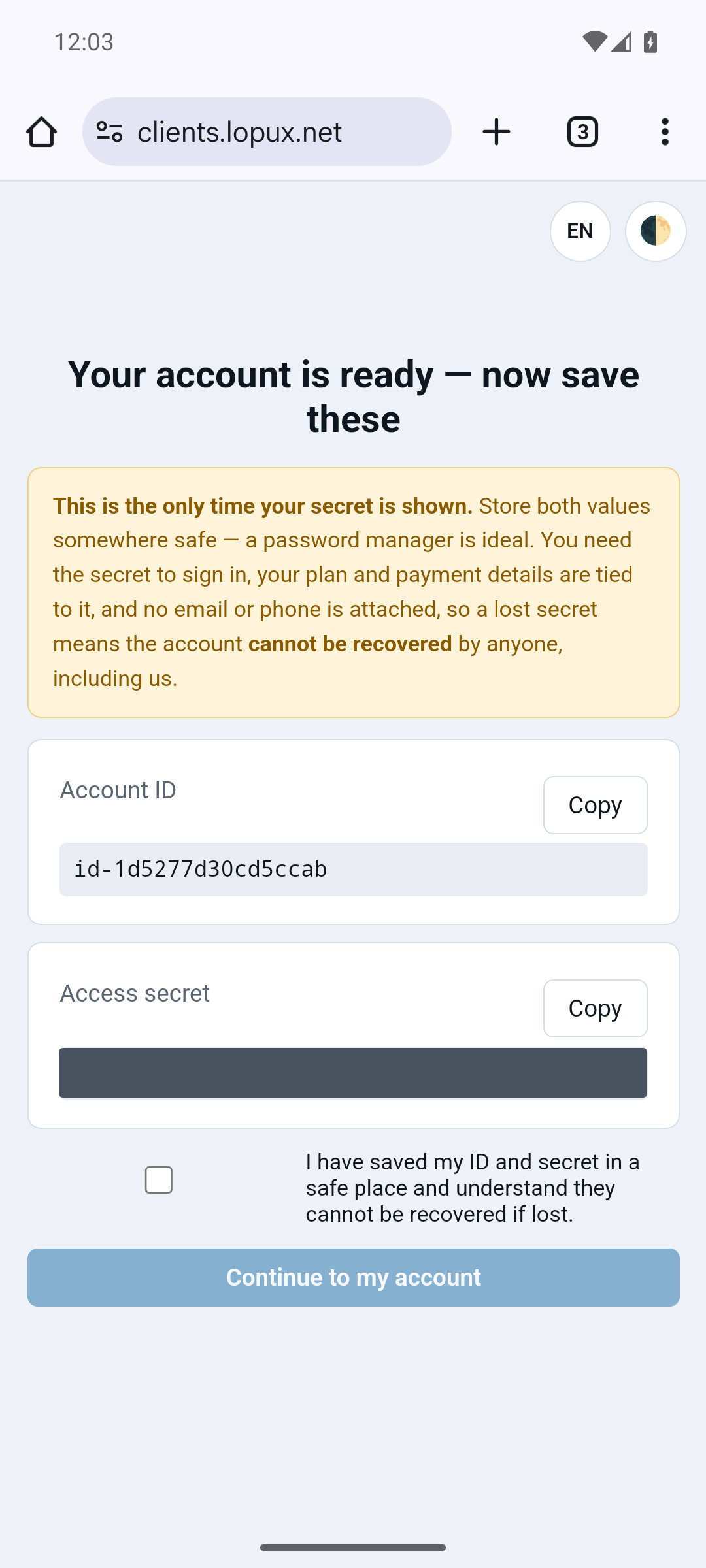
Save both values now. Press Copy next to each and put them somewhere safe — a password manager is ideal. The secret is what you sign in with, and nobody can restore it for you: there is no email to send a reset to. Tick the box and continue.
6. Get your config
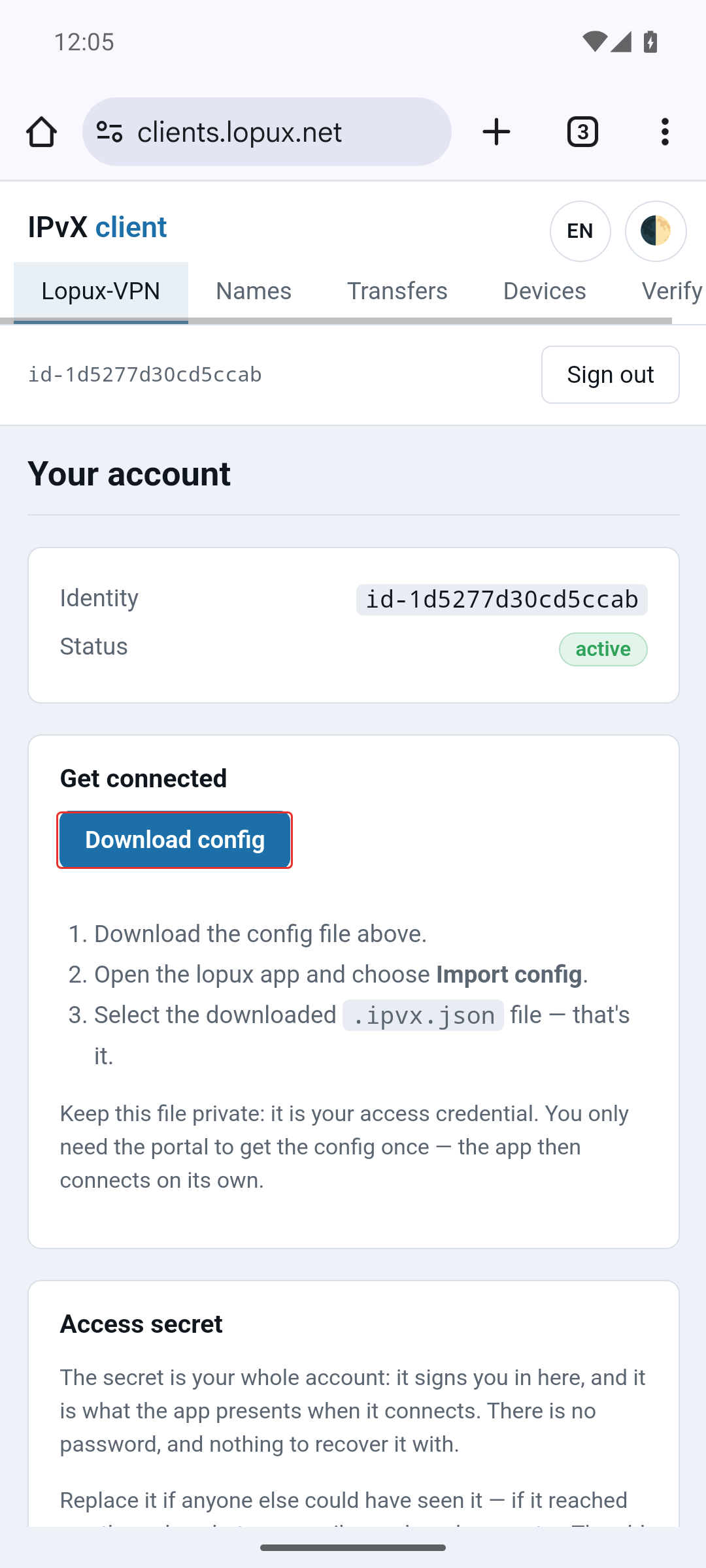
On your account page press Download config. It saves a small .ipvx.json file — this is what the app needs, and it is your access credential, so keep it to yourself.
7. Import it
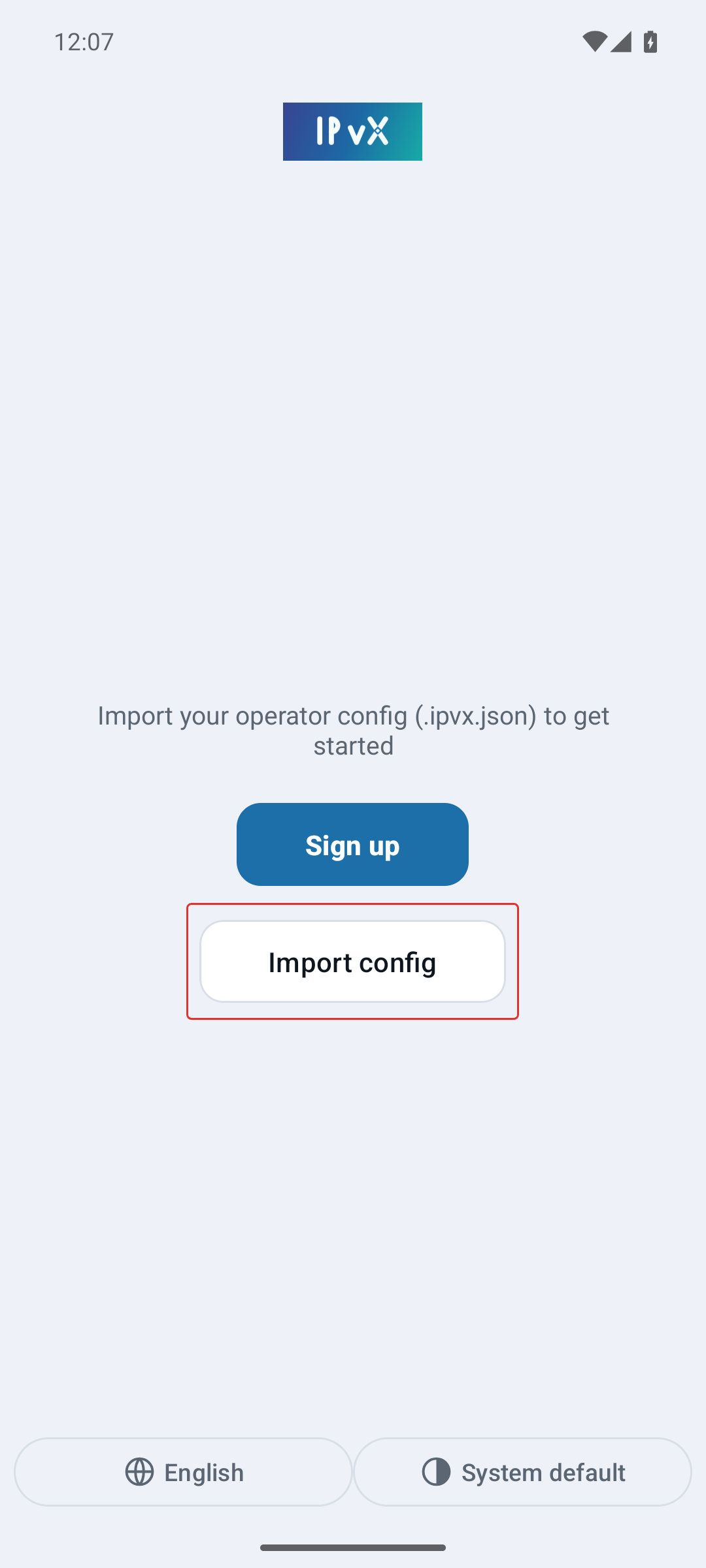
Go back to the app and press Import config.
Android's file picker opens. The file is in Downloads; if the picker opens somewhere else, use the menu in the top-left corner to get there.
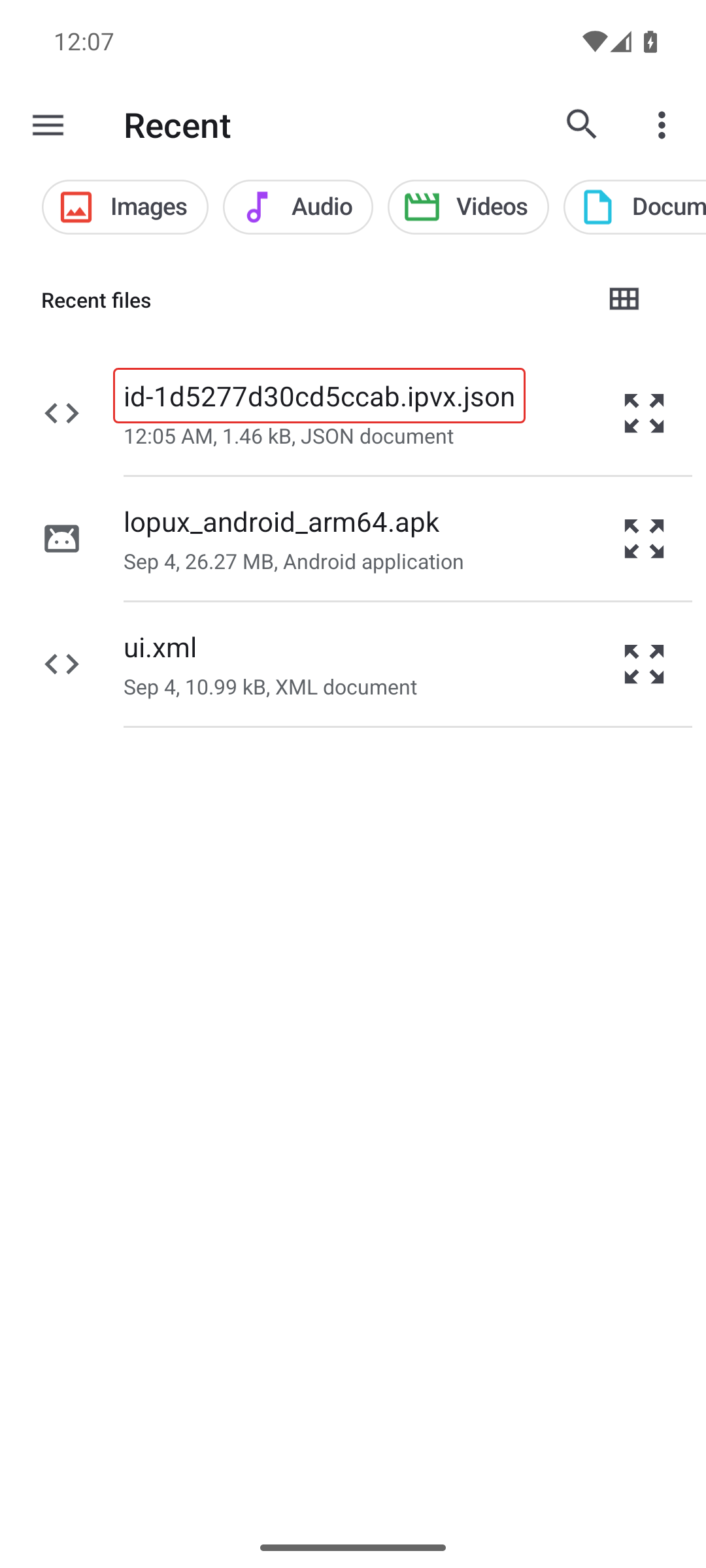
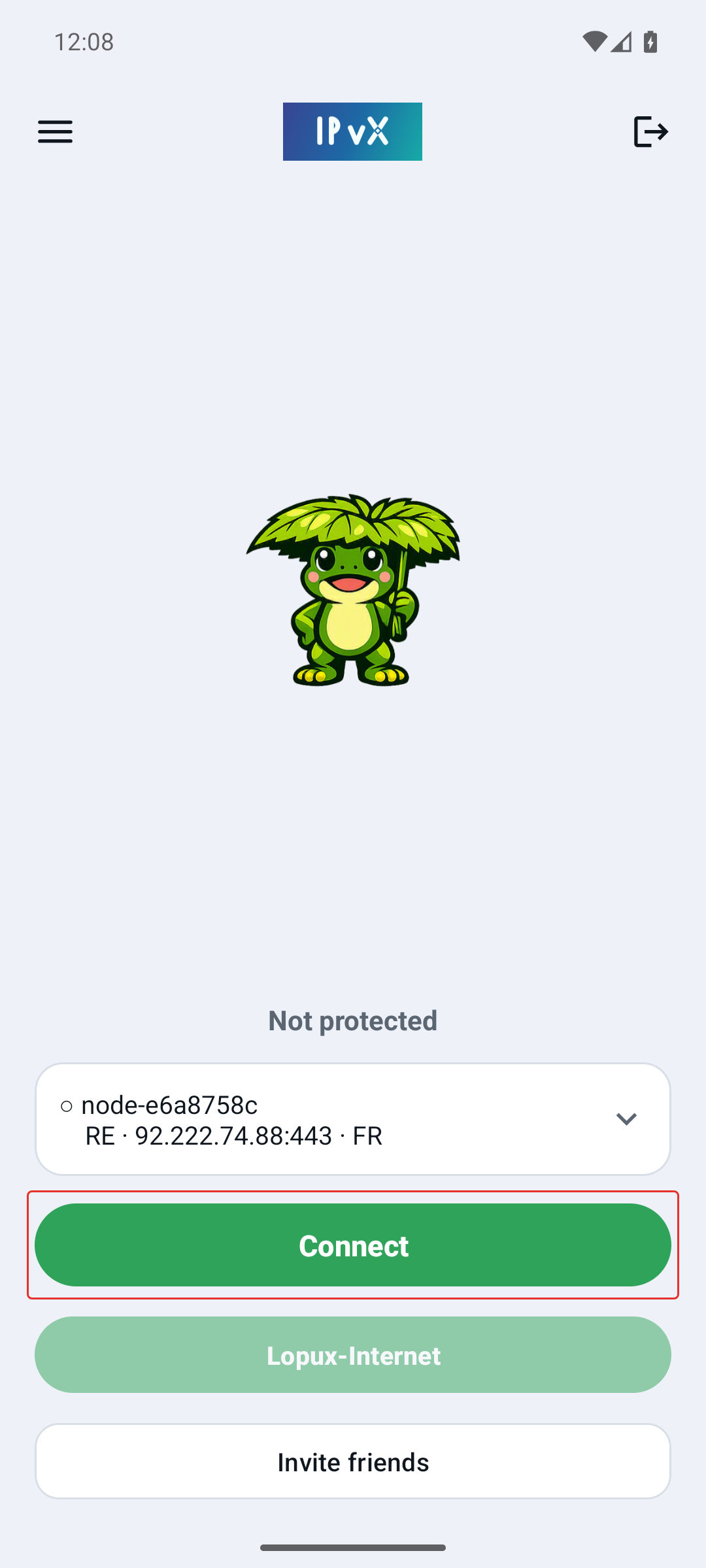
Pick it, and the app is ready: it now shows a server and a Connect button.
8. Connect
Press Connect. Android asks for permission the first time, in its own words: "lopux wants to set up a VPN connection that allows it to monitor network traffic."
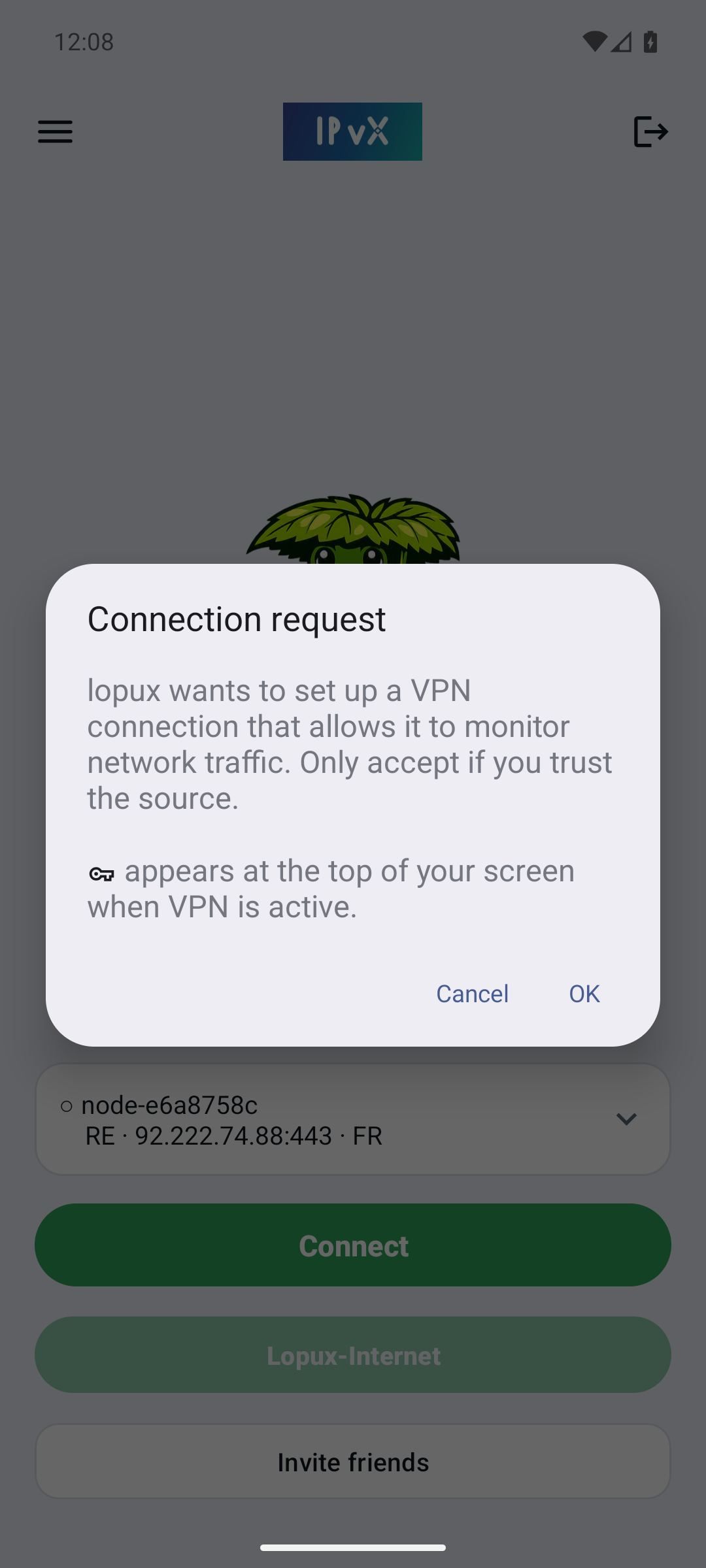
That wording is Android's, and it is the same for every VPN app. It says what a VPN is: everything your phone sends goes through it. That is exactly what you installed the app for. Press OK, and Android will show a key icon at the top of the screen whenever a VPN is running.
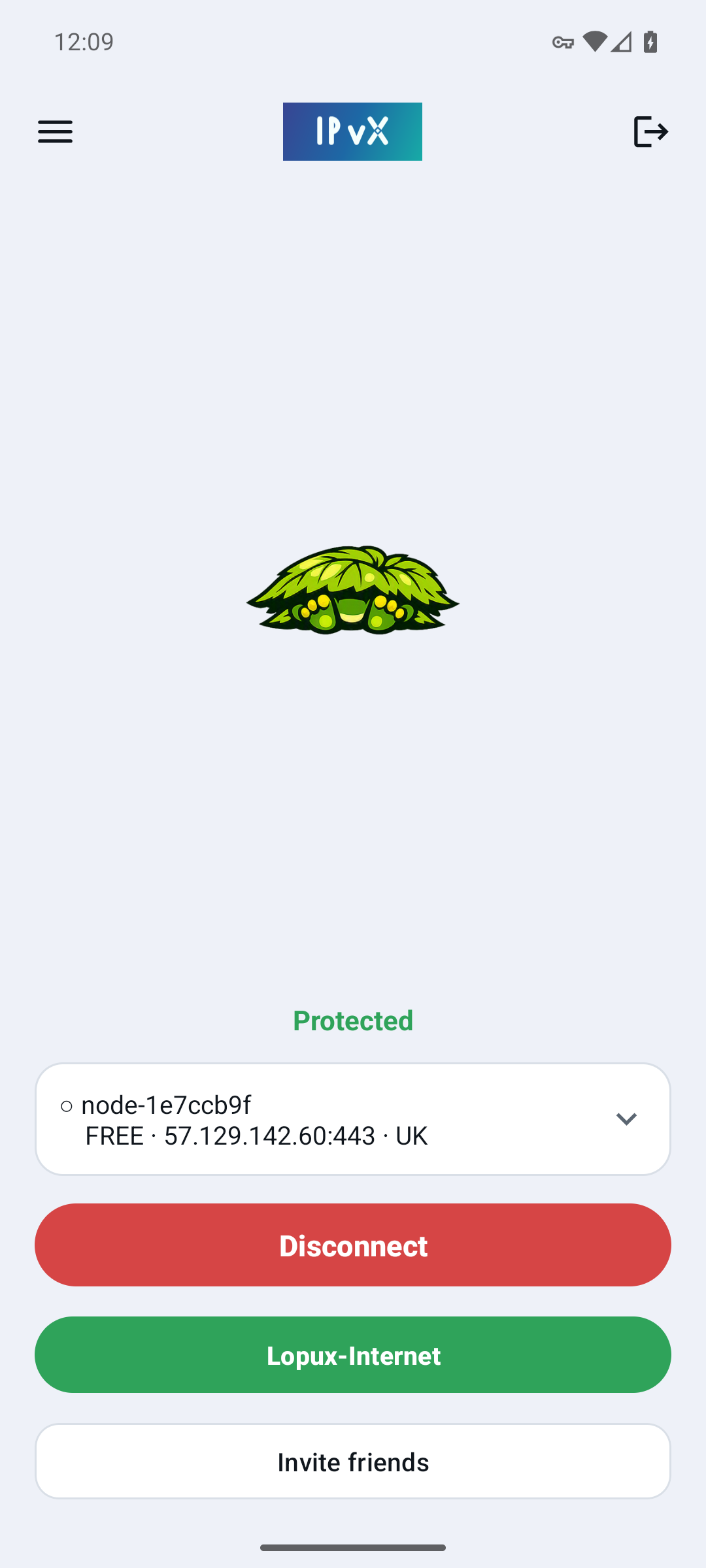
"Protected" here means more than "the tunnel started". Before the app says it, it sends one test request through the tunnel and waits for the answer. If nothing comes back it tells you that instead of showing a green screen over a connection that carries nothing.
You are connected. The server can be changed in the list above the button, and the same button disconnects.