
Turning on Lopux-Internet in the desktop app
Beside the ordinary internet we run one of our own, with names like mysite.lopux that no public DNS knows. This guide turns it on in the desktop app: what the app asks permission for, what that permission can and cannot do, and how to take it back.
It is off by default, and off means nothing is installed and nothing is running. If you only want the VPN, you can close this page — nothing here is required for it.
The screenshots show the English interface. The app speaks six languages; pick yours with the language button in the bottom-left corner.
1. Connect the VPN first
Lopux-Internet resolves names and checks keys through the tunnel, so there is nothing for it to do until the tunnel is up. Off the VPN its button is dead, and hovering it says why.
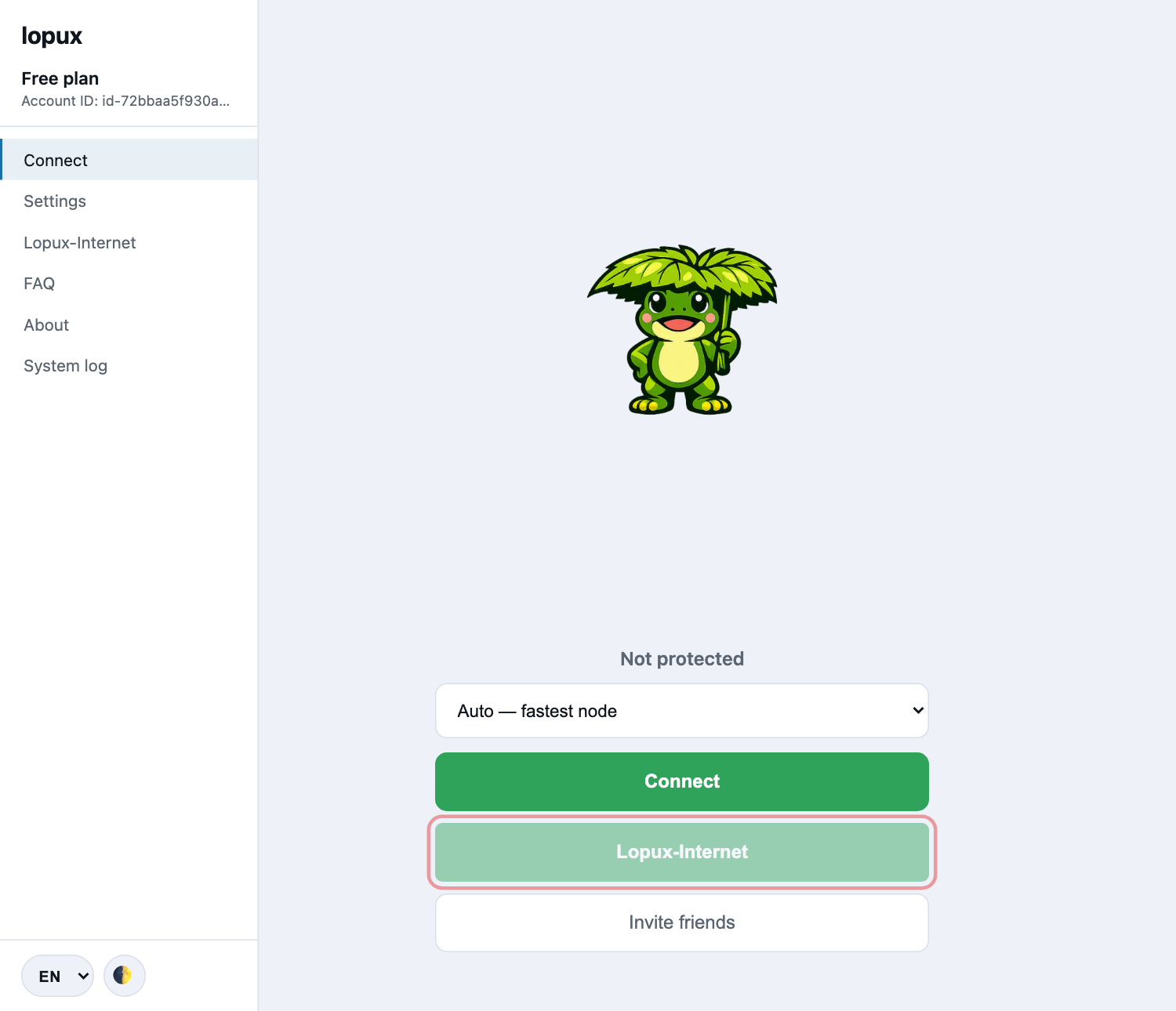
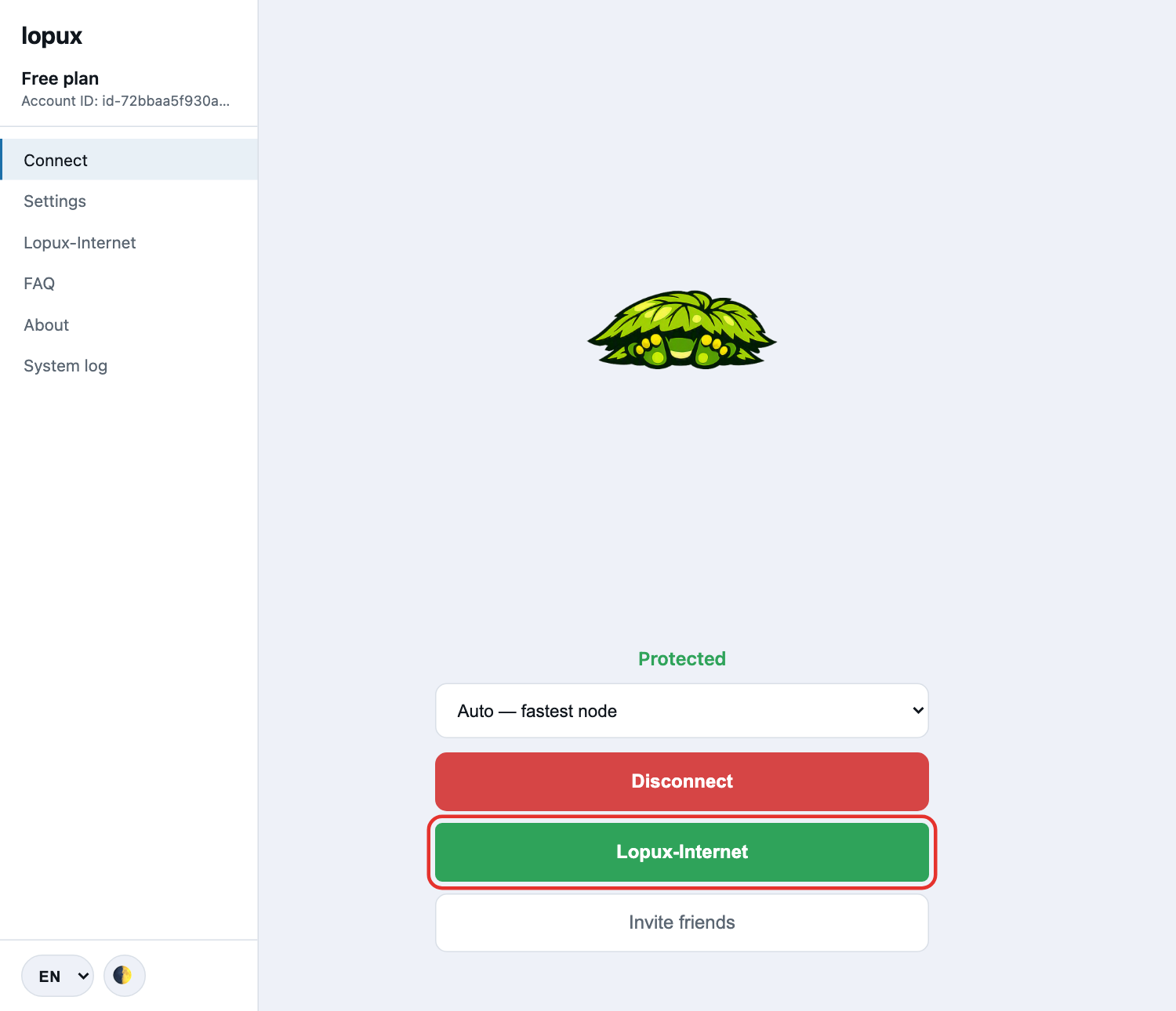
Connect as usual. The button comes alive.
2. What the app is asking for
Press it. The first time, it takes you to the Lopux-Internet section rather than turning anything on, because there is a decision to make first — and the section states it before offering the button that acts on it.
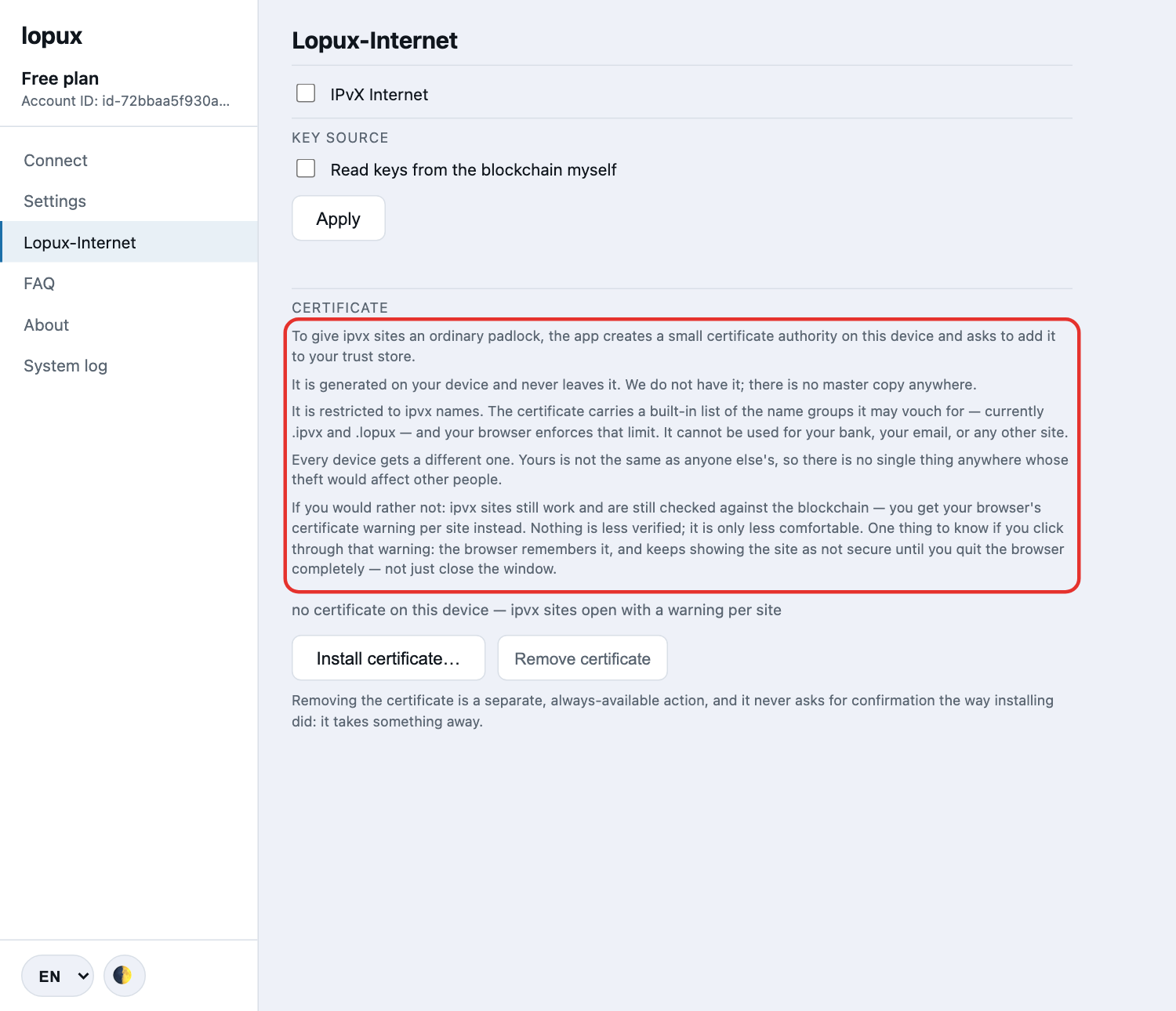
The short version of what it says:
- a small certificate authority is created on your device. Your browser will not show an ordinary padlock for a name it has never heard of, and no public authority may issue for these names — so the app becomes one, locally;
- it is generated on your device and never leaves it. We do not have it and there is no master copy. Seizing every machine we own would not produce a certificate your device accepts;
- it is restricted to ipvx names — the certificate carries a built-in list of the name groups it may vouch for, and your browser enforces that limit. It cannot be used for your bank or your email, and that is not a promise about our behaviour: your browser checks it against the certificate itself;
- every device gets a different one, so there is no single thing anywhere whose theft would affect anyone else.
And what declining costs, which the same screen says without being asked: ipvx sites still work and are still checked against the blockchain — you get your browser's certificate warning per site instead. Nothing is less verified; it is only less comfortable.
3. Install the certificate
The line under the text says where you stand. Before you install anything it reads no certificate on this device — ipvx sites open with a warning per site.
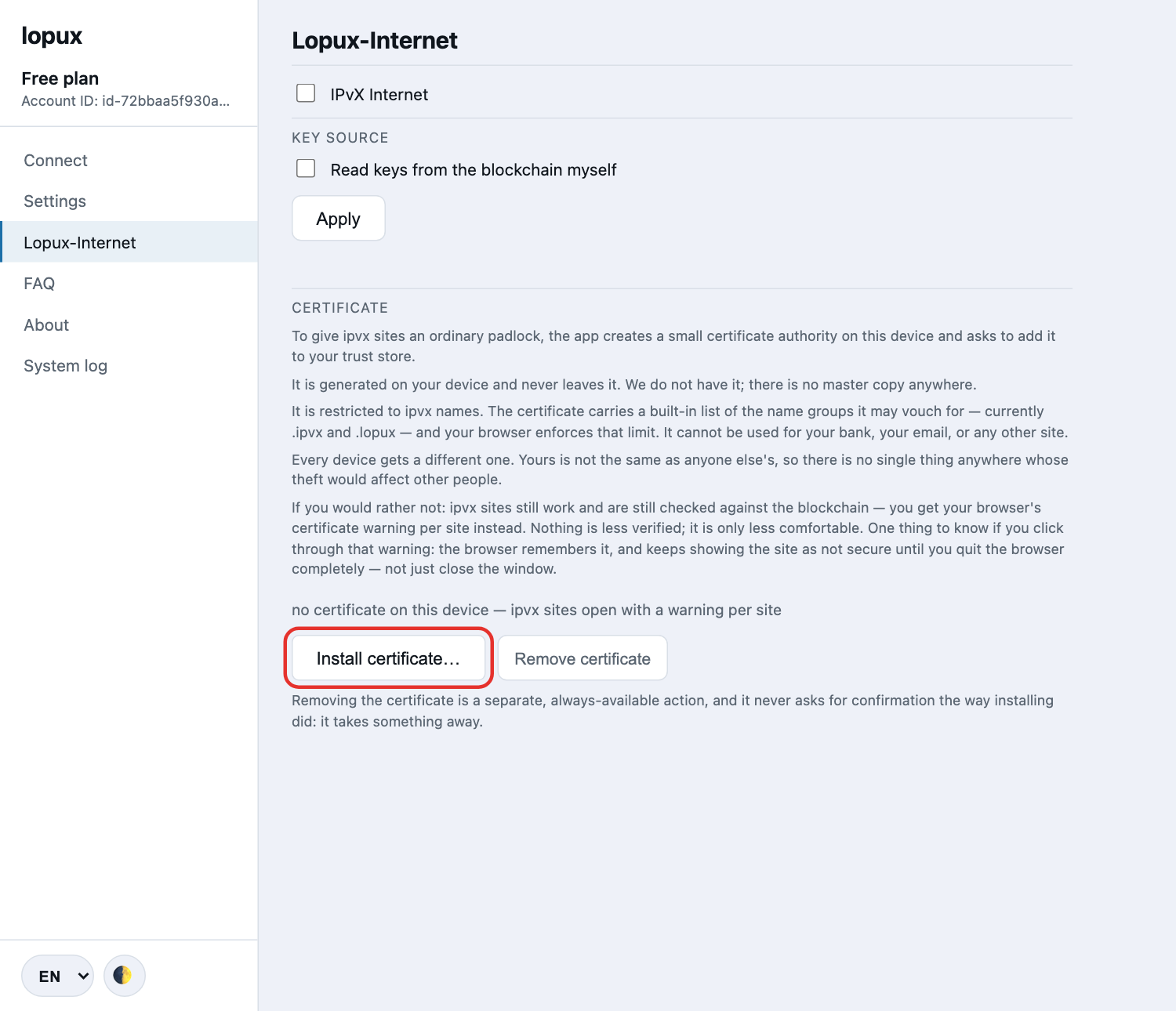
Press Install certificate…. The app puts it into your account's store, not the whole machine's, and reports each store it reached — Firefox keeps its own list and is handled separately.
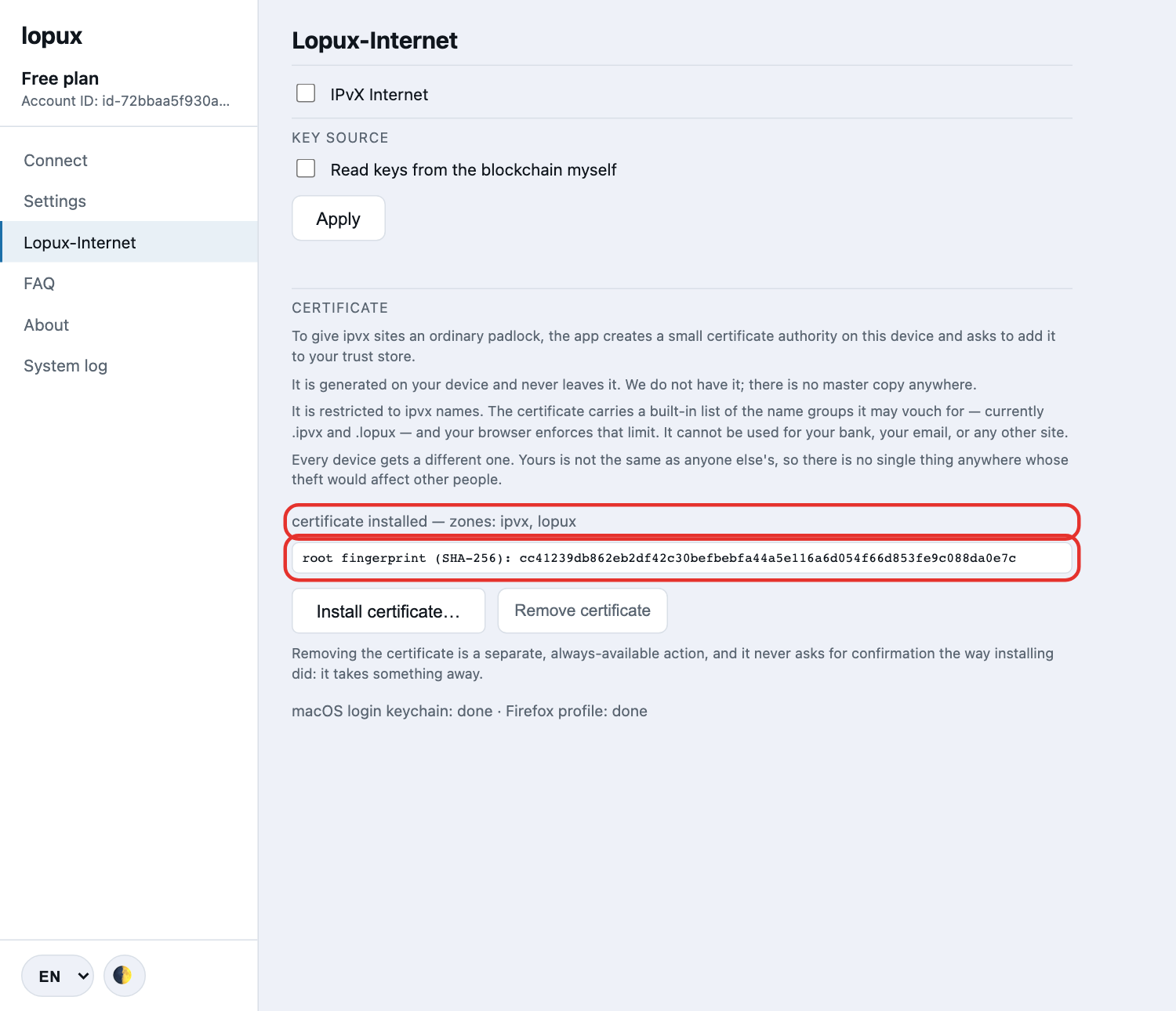
Two things on that screen are worth reading rather than skipping:
- the zones. That is the exact list your browser will hold this certificate to. Nothing outside it can be vouched for by this key;
- the fingerprint. It is this device's own, and it is what you compare against if you ever check the certificate in your browser or your system settings.
4. Turn it on
Back on the Connect screen the button now offers to turn the stack on.
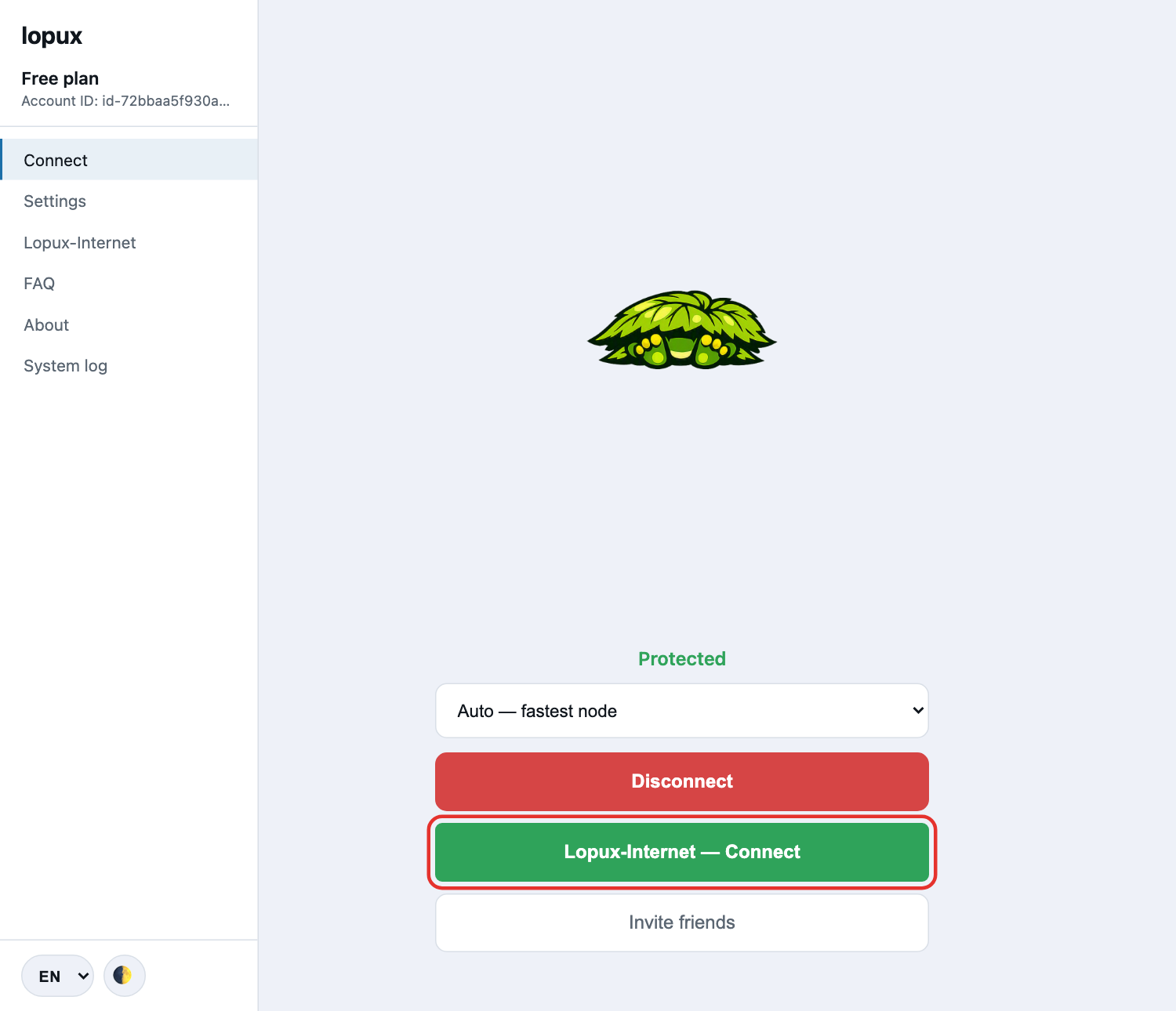
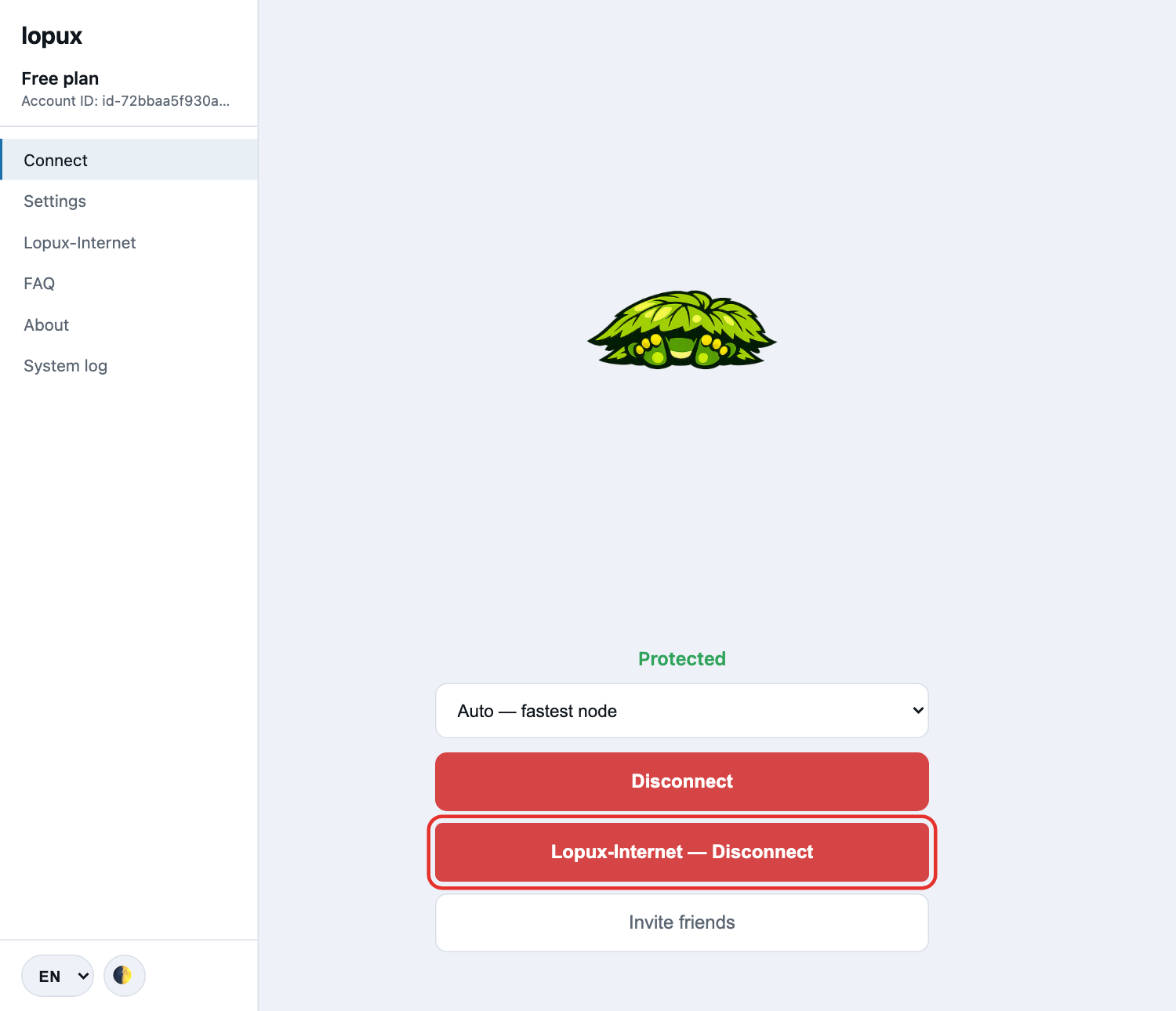
Press it, and it is on. The same button turns it off again.
5. Open a site
Type an ipvx name in your browser. lopux.ipvx is this project's own site and a good first test.
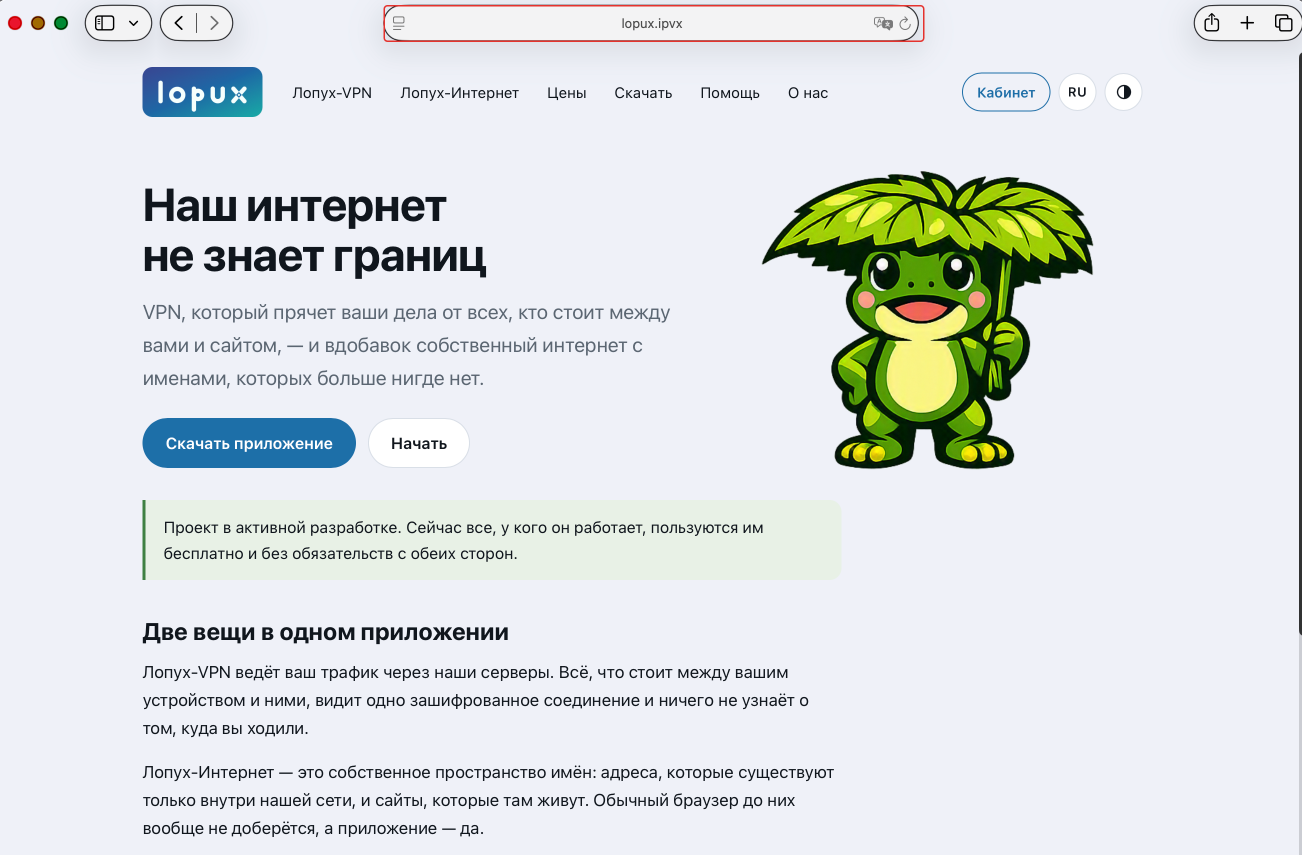
What the padlock means here — and the case that surprises people. A padlock means your device's own bridge is talking to your browser and the site's key matched what its owner published on-chain. But if the check fails, you still see a padlock, over an error page: the app has to complete a secure connection with your browser before it can show you anything, including bad news. Read the page, not the icon. If a site could not be verified, the page says so plainly and says whose problem it is.
It also vouches for identity, not honesty: that mysite.lopux really is the machine whose owner registered that name — nothing about whether they will send you the goods.
6. Reading the blockchain yourself (optional)
By default the app asks the ipvx server you are connected to what key a site published. You can have it read the blockchain itself instead, through the same tunnel.
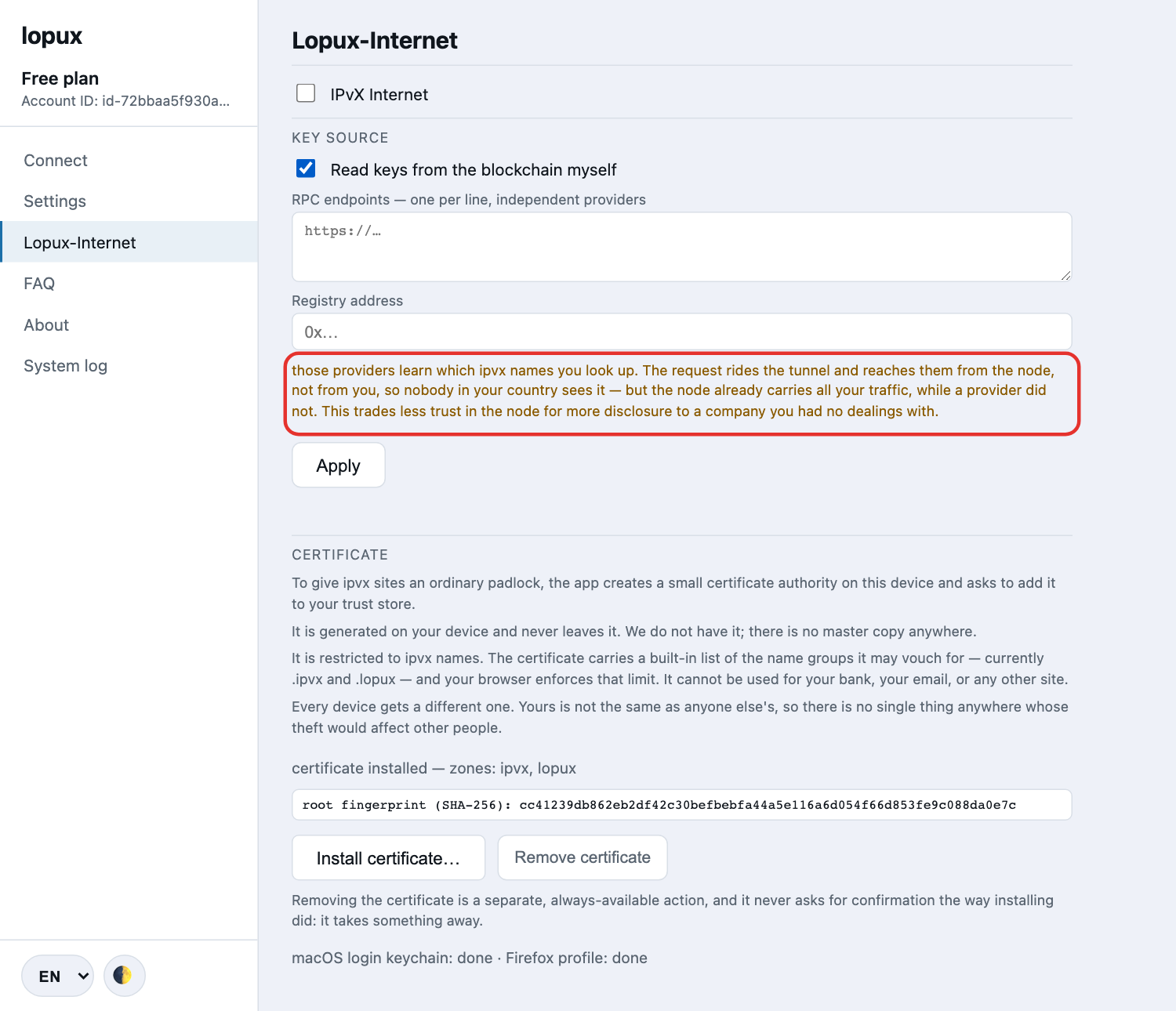
What it gains: a site's identity stops depending on the server you connect through. That server still tells your app where the site is — but if it sends you to the wrong machine, that machine's key will not match, and you are refused rather than fooled. Impersonating a site would then need the server and a blockchain provider to be dishonest at the same time.
What it costs, and the app says this the moment you tick the box: the provider you query learns which ipvx names you look up. The request rides the tunnel and reaches them from our server rather than from you, so nobody in your country sees it — but our server already carries all your traffic, while that company had no dealings with you at all.
If you turn it on, give it two providers. With one there is no cross-check, which is the thing the setting is named for. And if the providers cannot be reached, sites are refused rather than quietly falling back to asking the server.
7. Turning it off, and taking the certificate back
The whole stack is one switch. Turn it off and nothing is bound, nothing is looked up, no ipvx names are handled: you have a plain VPN again.
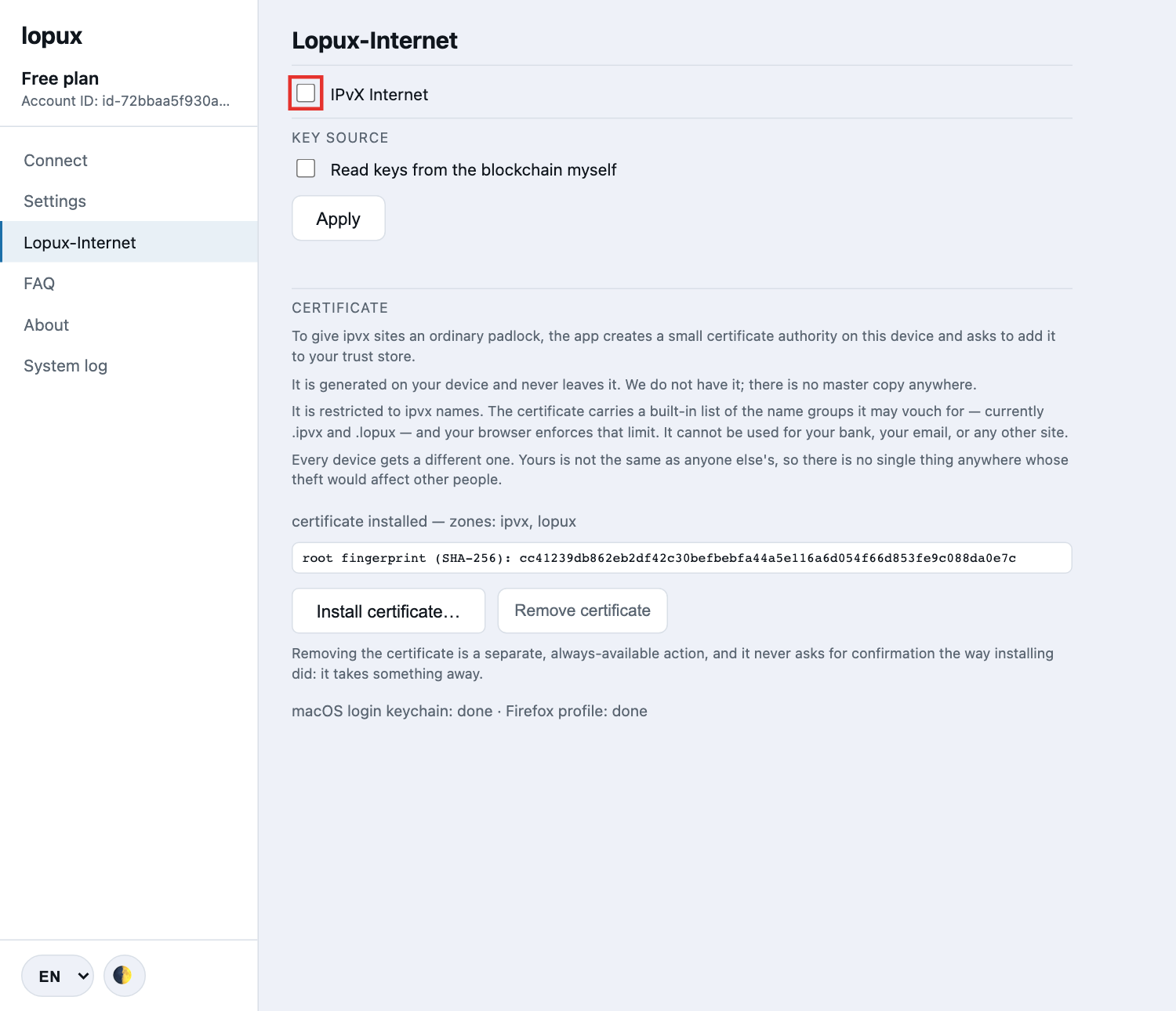
Removing the certificate is separate and always available. It never asks for confirmation the way installing did — it takes something away. Removal erases the key behind it, so nothing on this device can sign with it again.
If you ever want to check or remove it by hand, it is in your own account's store: Keychain Access → login on macOS, certmgr.msc → Trusted Root Certification Authorities on Windows. Firefox keeps its own list per profile, under Settings → Privacy & Security → Certificates → Authorities.
One thing to know if you ever click through a browser warning on an ipvx site: the browser remembers that override and keeps showing the site as not secure for the rest of its run — even after everything is verified again. Quitting the browser completely, not just closing the window, clears it. On Windows, Edge and Chrome keep background processes alive after the last window closes unless you turn that off, so "I closed it" is often not the same as "it exited".
8. The messages you might see
The app names the failure instead of showing a blank page:
| What you are told | What happened | Whose move |
|---|---|---|
| No key fingerprint published for this name | the owner never published one, so there is nothing to check against | theirs. The app will not connect unverified |
| This is not the site it claims to be | the server offered a key that does not match the published one | do not enter anything. Either the owner changed keys without publishing, or someone is impersonating the site |
| The site did not answer | name and key are fine, the server did not respond | theirs — try later |
| This page cannot work over plain http | the page links to itself with full https:// addresses | the owner's to fix |
| This app needs an update to open this site | a group of names was added that your version does not know | yours — update the app |
| This name could not be checked against the chain | you turned on reading the blockchain yourself and the providers did not answer or disagreed | yours — try again, add a second provider, or turn that option off |