
Opening our sites on a phone, with no VPN and nothing to install
The app carries a small browser of its own, and it is the shortest way to our sites on Android: it needs no VPN, no account and no certificate installed in the phone. Install the app and it works.
That last part matters more than it sounds. Android does not let an app add a certificate authority, so in Chrome our sites warn about the certificate until you install one by hand. Our own browser has nothing to install: it checks the key itself, against the one published for that site.
It is not a way around censorship. It opens our sites, not a blocked site somewhere else.
1. Open the menu
The button is in the top-left corner of the main screen. It is there whether or not you have an account.
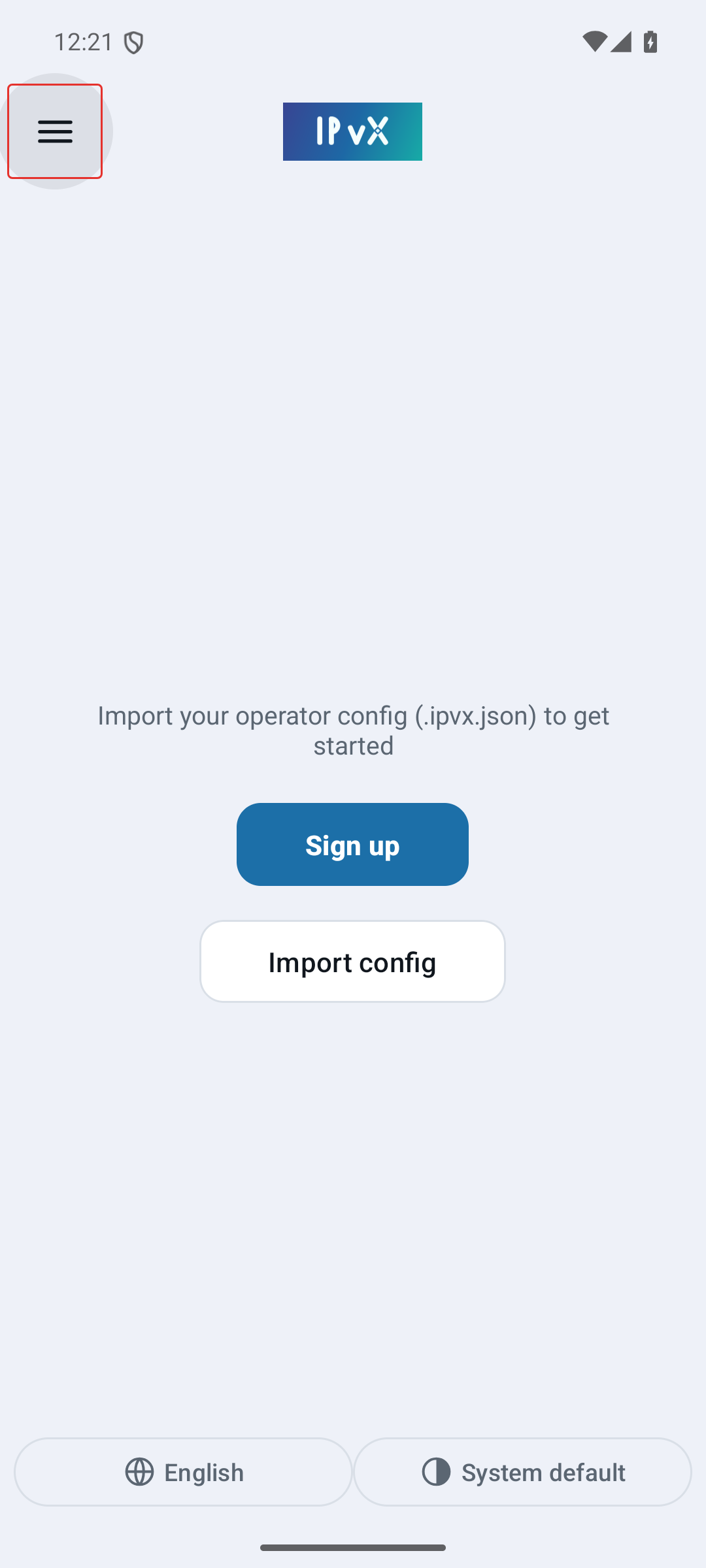
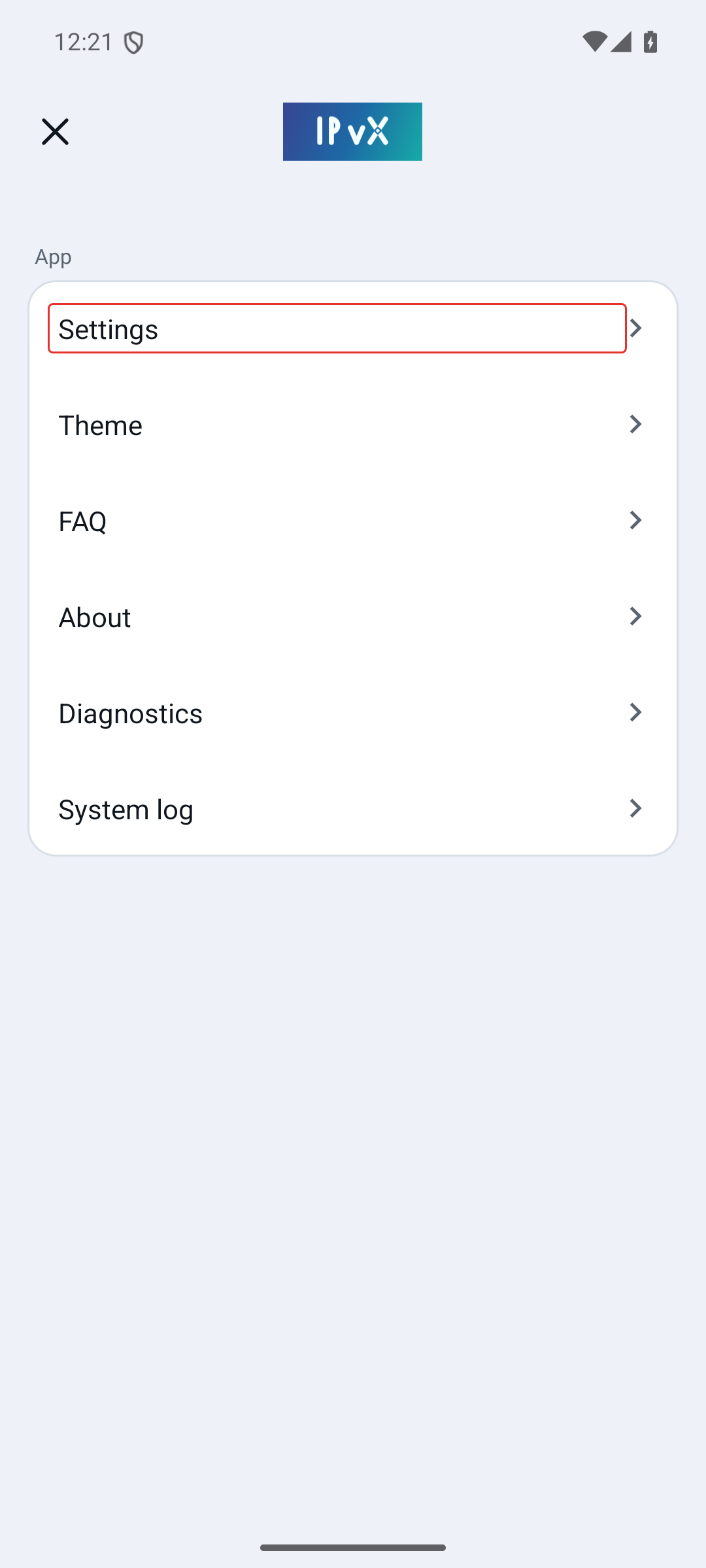
2. Go to Settings
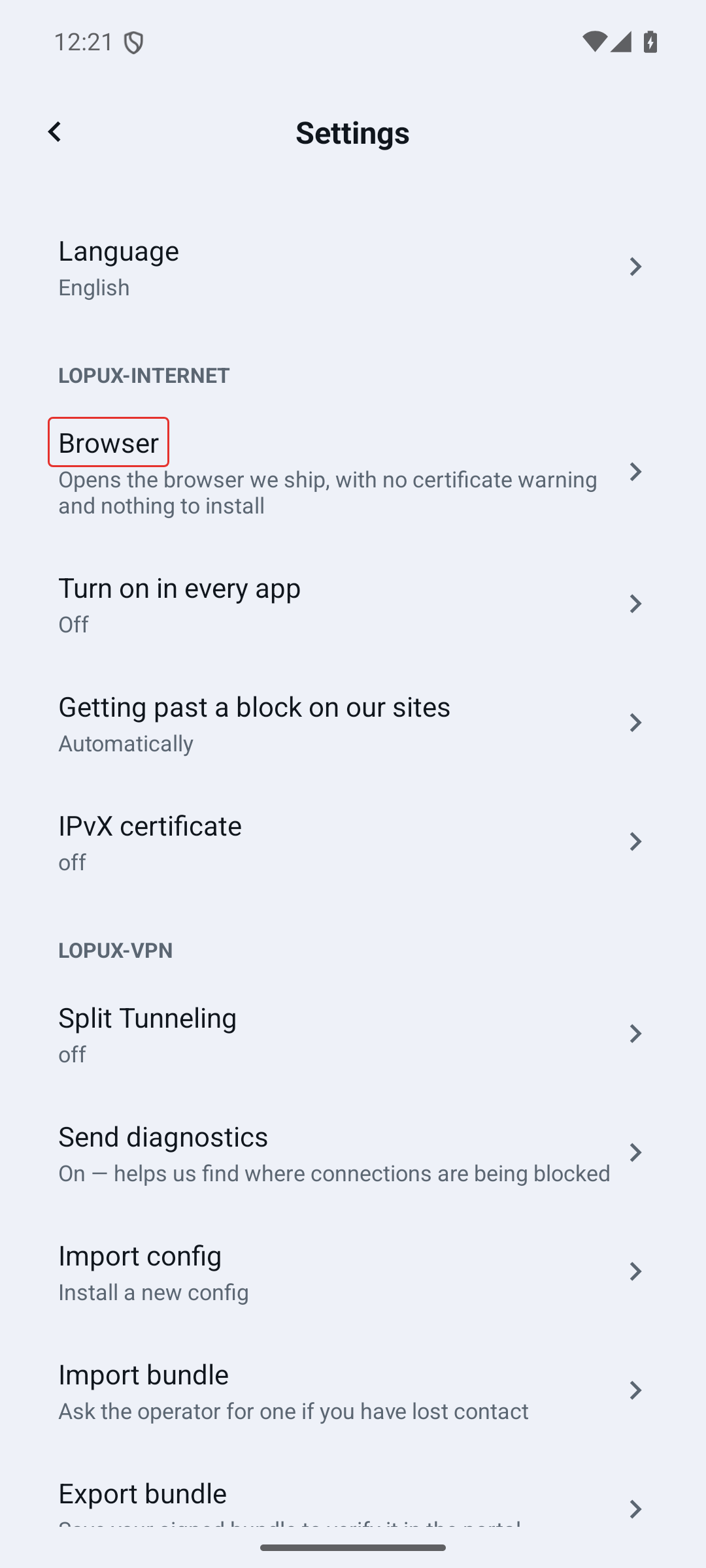
3. Lopux-Internet → Browser
The settings are grouped. Under Lopux-Internet, the first row is the browser.
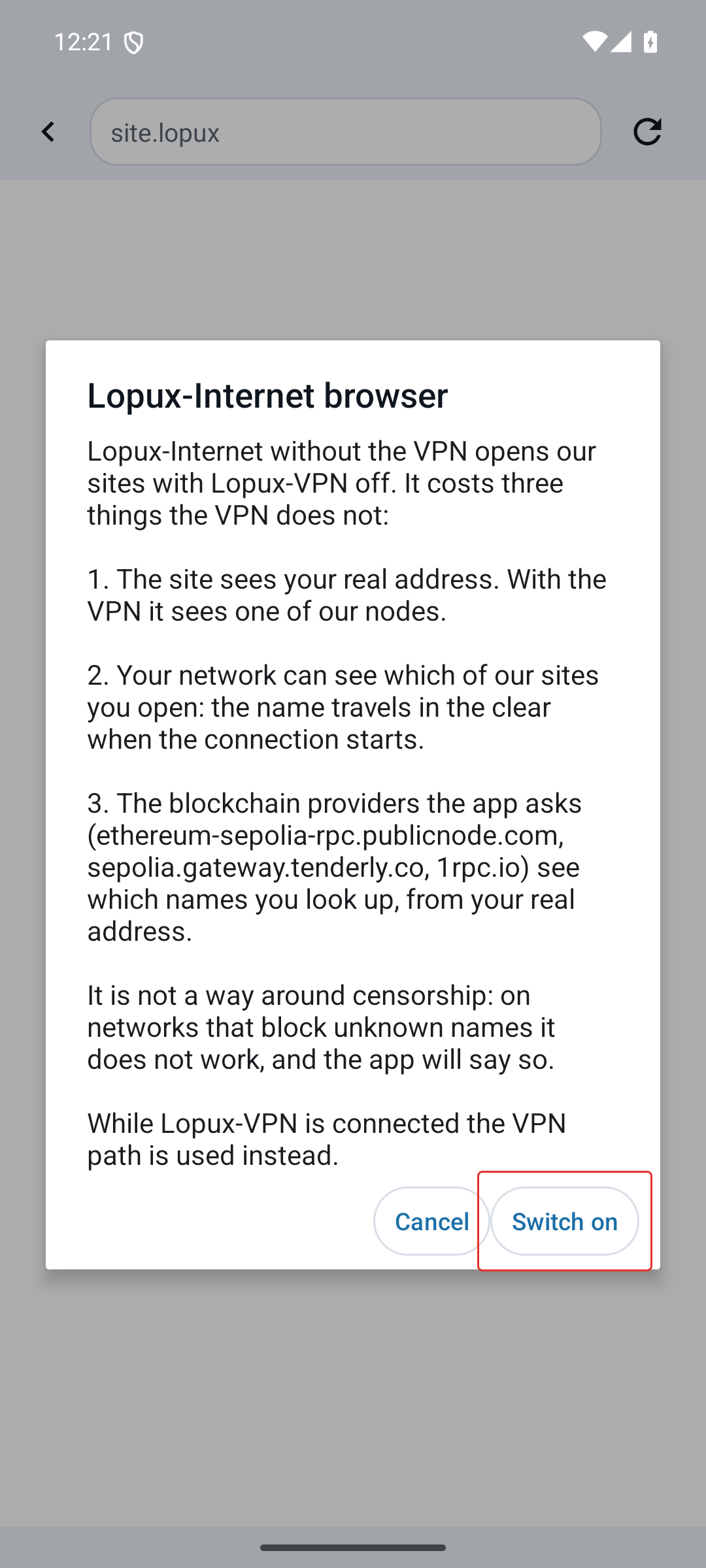
4. Read what it costs, then switch on
The first time, the app shows what the mode spends before it starts anything:
- the site sees your real address — through the VPN it would see one of our servers;
- your network sees which of our sites you open — the name is not encrypted at the start of the connection;
- three public blockchain providers see which of our names you looked up, and from where.
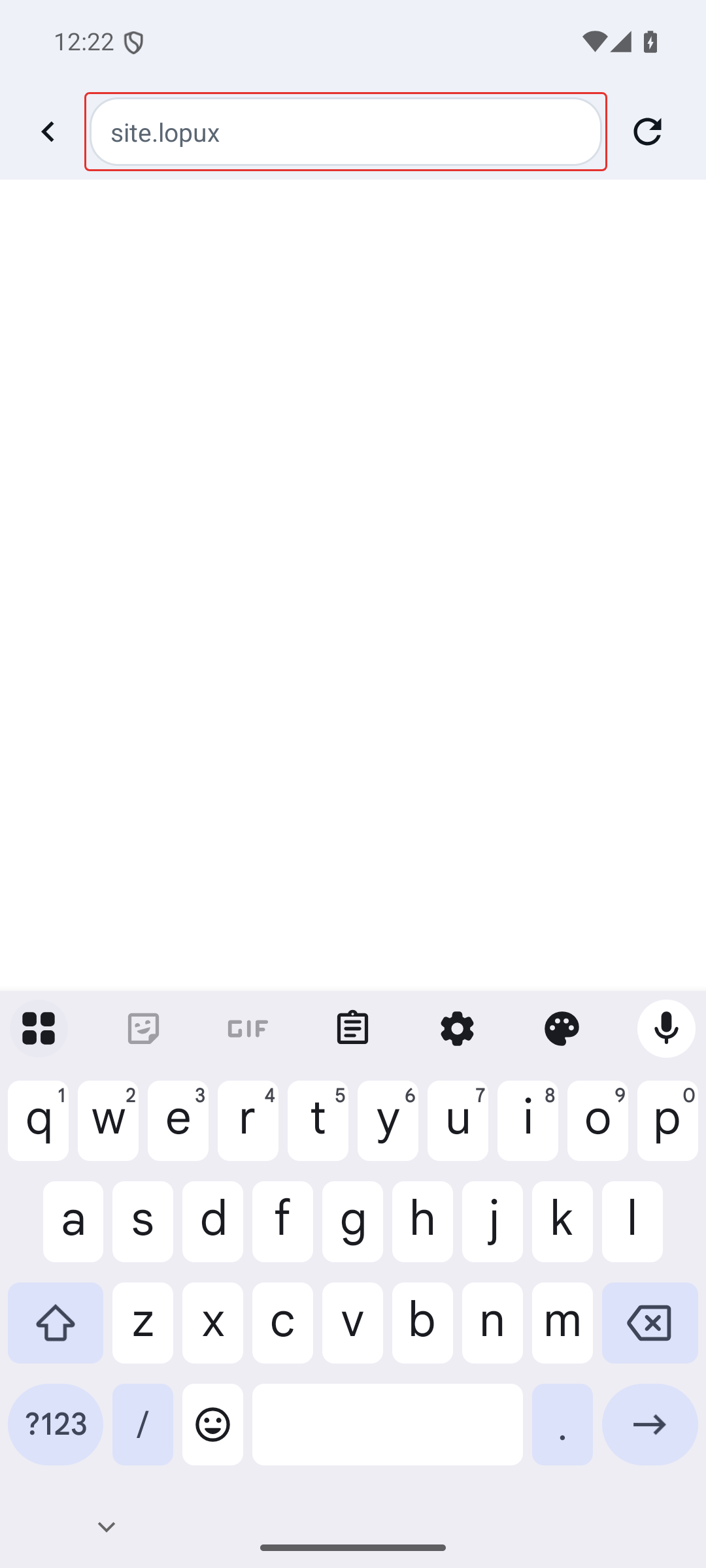
5. Type a name
The address bar takes our names: lopux.ipvx, or any site on our zones.
6. That is all
The line under the address bar says how you got there and what is protecting it — no VPN, and the connection encrypted with this device's own certificate. The address bar shows the whole address, https:// included, so you can see for yourself.
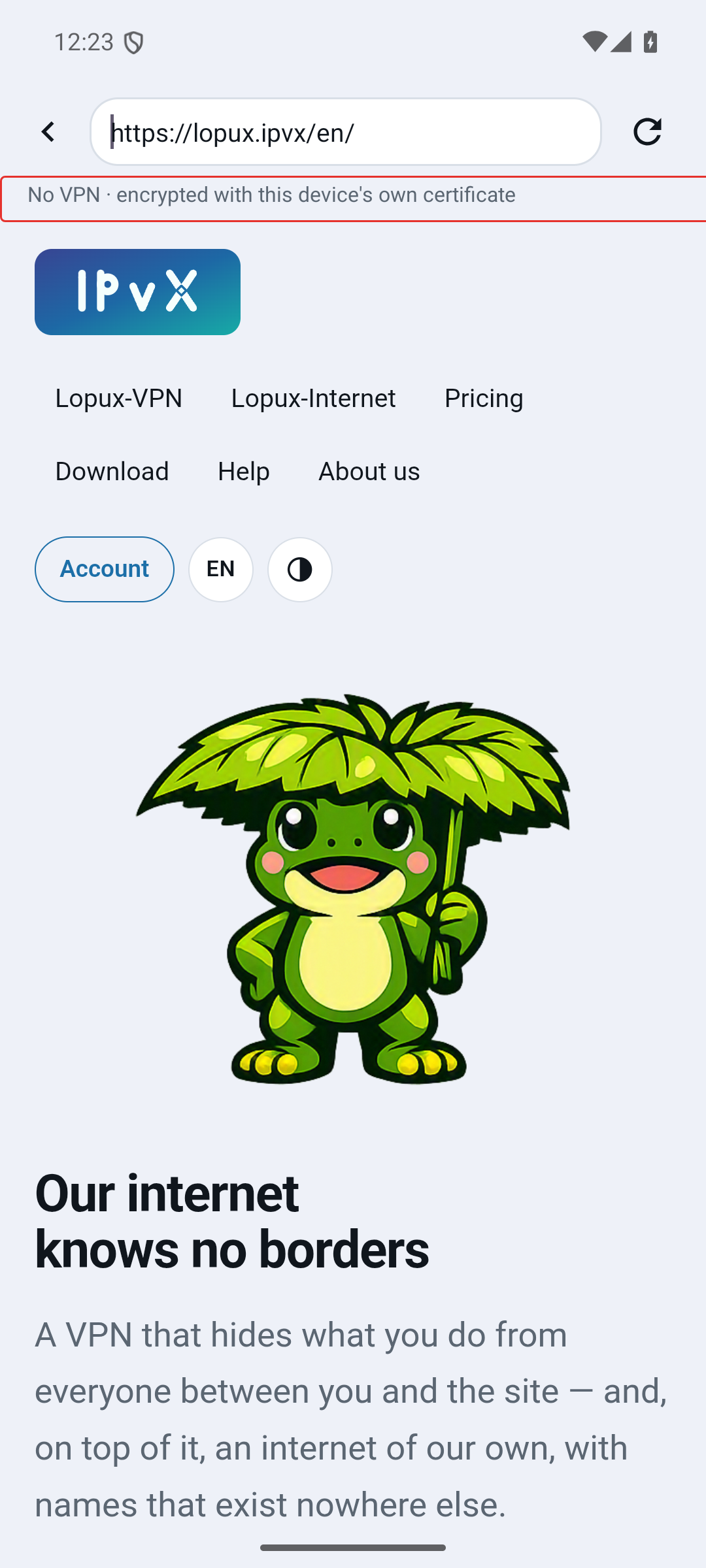
Only our names open here. Anything else is handed to your ordinary browser; this one is a door to our zones, not a second browser to live in.
If a site stops loading half-way
Some networks stop a connection after its first few kilobytes. The app notices and switches that site to fetching in pieces by itself — see Getting past a block on our sites if you want to see what it decided, or to force it.