
Putting your own site on a .lopux name
You have a name in Lopux-Internet; this guide puts a real website behind it, reachable by anyone using the app. If you have no name yet, register one first.
It assumes you can run a web server and nothing else. Everything specific to Lopux-Internet is here: why the certificate is self-signed, what has to run beside your site, and the two records that make the name work.
The screenshots show the English interface. The portal speaks six languages — pick yours with the EN button in the top-right corner.
1. What you need, and what will not work
A machine where you control TLS on port 443. A VPS, a dedicated server, a box at home with a reachable address. That is the whole requirement, and it is a real one.
Managed platforms cannot host this, for two independent reasons. Vercel, Netlify, Cloudflare Pages, most PaaS: you add a custom domain and they obtain and serve the certificate. The whole point here is that your server proves it holds the key you published — a platform serving its own key cannot make that proof, and a visitor's app would refuse the site, correctly. Nor would they accept the name: their custom-domain setup validates ownership through the ordinary DNS, where mysite.lopux does not exist and never will.
A CDN in front does not help either — it terminates TLS, which is the same problem.
Platforms that let you upload your own certificate and key would work mechanically, but then that party can impersonate your site to every visitor, silently, and nothing in the design can detect it. Think about it the way you would think about handing anyone your private key, because that is what it is.
2. Why the certificate is self-signed
No certificate authority can issue for a Lopux-Internet name. Not because it is hard — because it is forbidden: a CA may only issue for names under the ordinary DNS root, and these names are deliberately outside it.
So instead of asking a stranger to vouch for you, you publish your own key's fingerprint in your name's zone, and every visitor's app checks the server it reached against that record. The record is the authority.
That is stronger than a CA in one specific way. With a CA, hundreds of organisations could each issue a certificate for your name and any of them would be believed. Here, only the key you published works.
3. Make the certificate
Ten years, no passphrase, and every name you serve listed in subjectAltName:
openssl req -x509 -newkey ec -pkeyopt ec_paramgen_curve:prime256v1 \
  -keyout site.key -out site.crt -days 3650 -nodes \
  -subj "/CN=mysite.lopux" \
  -addext "subjectAltName=DNS:mysite.lopux,DNS:www.mysite.lopux"
Three things about that command:
- the validity dates do not matter here. Apps ignore them on purpose: what decides whether your key is still good is the record you publish, not a date inside the certificate. So there is no renewal, ever. Ten years is simply longer than you will care;
-nodesmeans the key has no passphrase, which is what a web server needs to start
unattended. Keep it readable only by the server user — chmod 600 — and out of any image you push anywhere;
- put nothing in the certificate you would not publish. Anyone who completes a handshake with your server is handed it and can read the name out of it. One name, no organisation, no email.
4. What runs beside your site
Your site speaks plain HTTP and never sees a certificate. In front of it sits nginx, which terminates TLS with the key you published and passes the request inward.
That front exists because a Lopux-Internet origin needs several settings that are the opposite of what an ordinary hardened-nginx template gives you, and each one fails in a way that looks fine in a browser:
| Rule | What it costs to get wrong |
|---|---|
| no HSTS — and strip it if your site sends one | the header pins a browser to https:// for the name, which permanently breaks the plain-http:// mode a visitor gets before installing anything |
no redirect to https:// — and tell your site the request already arrived over TLS | otherwise your framework issues that redirect itself and breaks the same mode from the inside |
| refuse handshakes whose SNI is not your name | a scanner sweeping addresses collects your certificate, and the certificate carries your name |
| 443 only | apps dial 443 and nothing else; port 80 serves nobody who came through Lopux-Internet |
| deadlines on the handshake and the read | one connection that opens and says nothing can wedge the server. A public address collects these within minutes |
| the front holds the key; the hop inward is plain HTTP | so that hop must never leave the machine — do not publish your site's own port |
Here is that nginx, whole. Replace the name, the paths and the backend address:
map $http_upgrade $connection_upgrade { default upgrade; '' close; }
server_tokens off;

# not your name: a closed door, before any certificate is sent
server {
    listen 443 ssl default_server;
    listen [::]:443 ssl default_server;
    ssl_reject_handshake on;
}

server {
    listen 443 ssl;
    listen [::]:443 ssl;
    http2 on;
    server_name mysite.lopux;

    ssl_certificate     /etc/ssl/site.crt;   # the key you publish
    ssl_certificate_key /etc/ssl/site.key;
    ssl_protocols       TLSv1.2 TLSv1.3;     # self-signed: nothing to staple

    client_header_timeout 10s;   # these bound the handshake — see below
    client_body_timeout   10s;
    send_timeout          10s;
    keepalive_timeout     30s;
    reset_timedout_connection on;

    proxy_hide_header Strict-Transport-Security;

    location / {
        proxy_pass http://127.0.0.1:8080;   # your site, plain HTTP, not published
        proxy_http_version 1.1;
        proxy_set_header Host              $host;
        proxy_set_header X-Forwarded-Proto https;   # rule 2: no self-redirect
        proxy_set_header X-Real-IP         $remote_addr;
        proxy_set_header Upgrade           $http_upgrade;
        proxy_set_header Connection        $connection_upgrade;
        proxy_connect_timeout 5s;
        proxy_read_timeout    60s;
    }
}
One trap in those timeouts, because nginx will not start if you get it wrong: ssl_handshake_timeout does not exist in nginx's http module — it belongs to stream. In http the handshake is bounded by client_header_timeout, which is why that value is doing the work here.
The SNI gate is worth one more paragraph, because it does something less obvious than hiding from scanners. Without it, your server hands the same certificate — and so the same browser warning — to two visitors whose situations are opposites: someone whose app checked your key against the record before a byte of the page moved, and someone who typed your IP address, where nothing was checked at all. The gate removes the second one. It does not make the warning mean "verified": anyone who knows your name can put it in their own hosts file and arrive unchecked exactly as before.
One rule about your pages, and it is easy to miss: use relative links. /about, not https://mysite.lopux/about. A visitor in plain-http:// mode cannot follow an absolute https:// link to your own site, and Lopux-Internet deliberately does not rewrite your pages. Links to other sites are your business and are not affected.
5. Publish the key's fingerprint
Open your name in the portal and scroll to Certificates. Before you publish anything it says so plainly: with nothing to check against, the app refuses to open the site rather than connecting unverified.
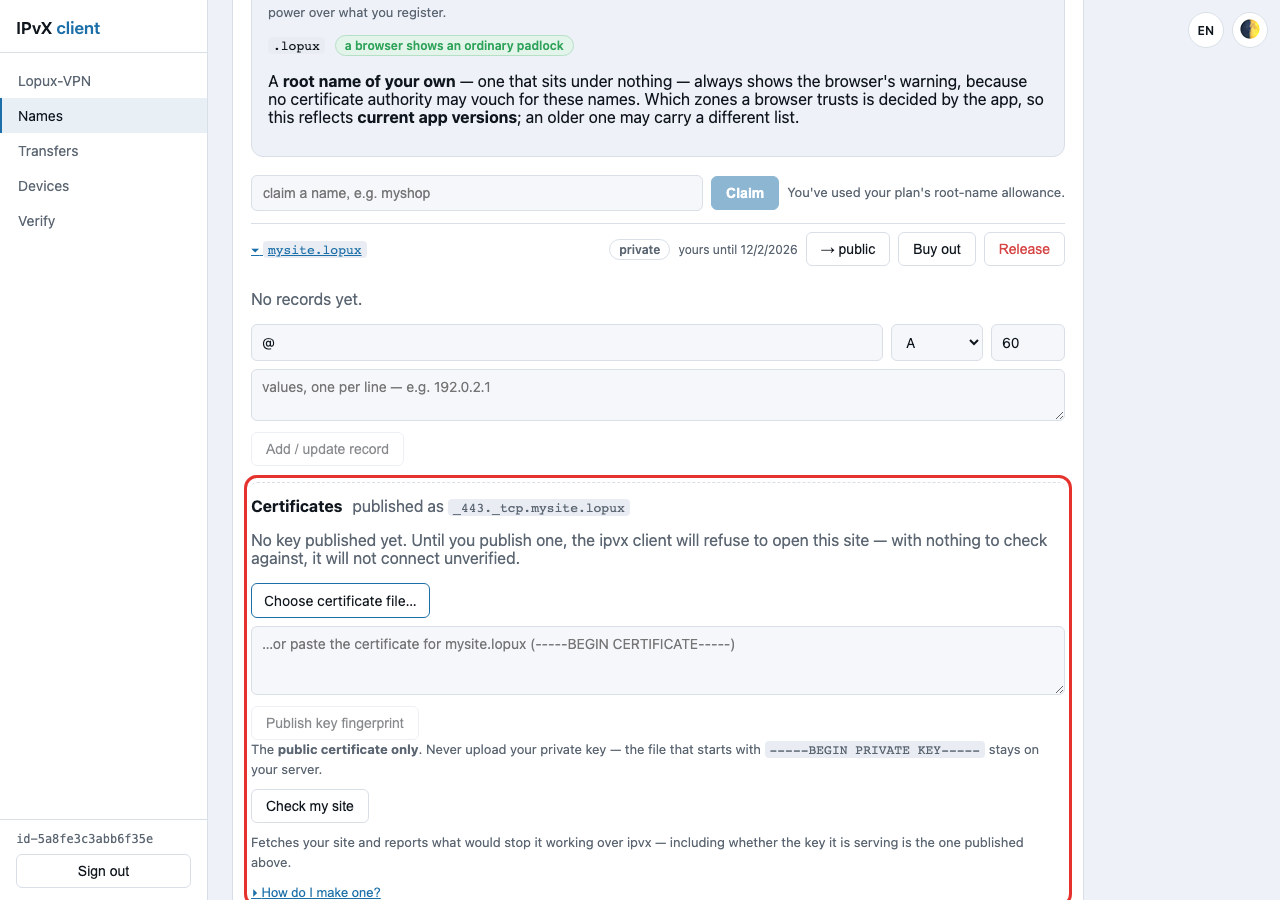
Upload site.crt with Choose certificate file…, or paste it. The certificate only — the file that begins -----BEGIN PRIVATE KEY----- stays on your server, and the portal refuses it rather than storing it.
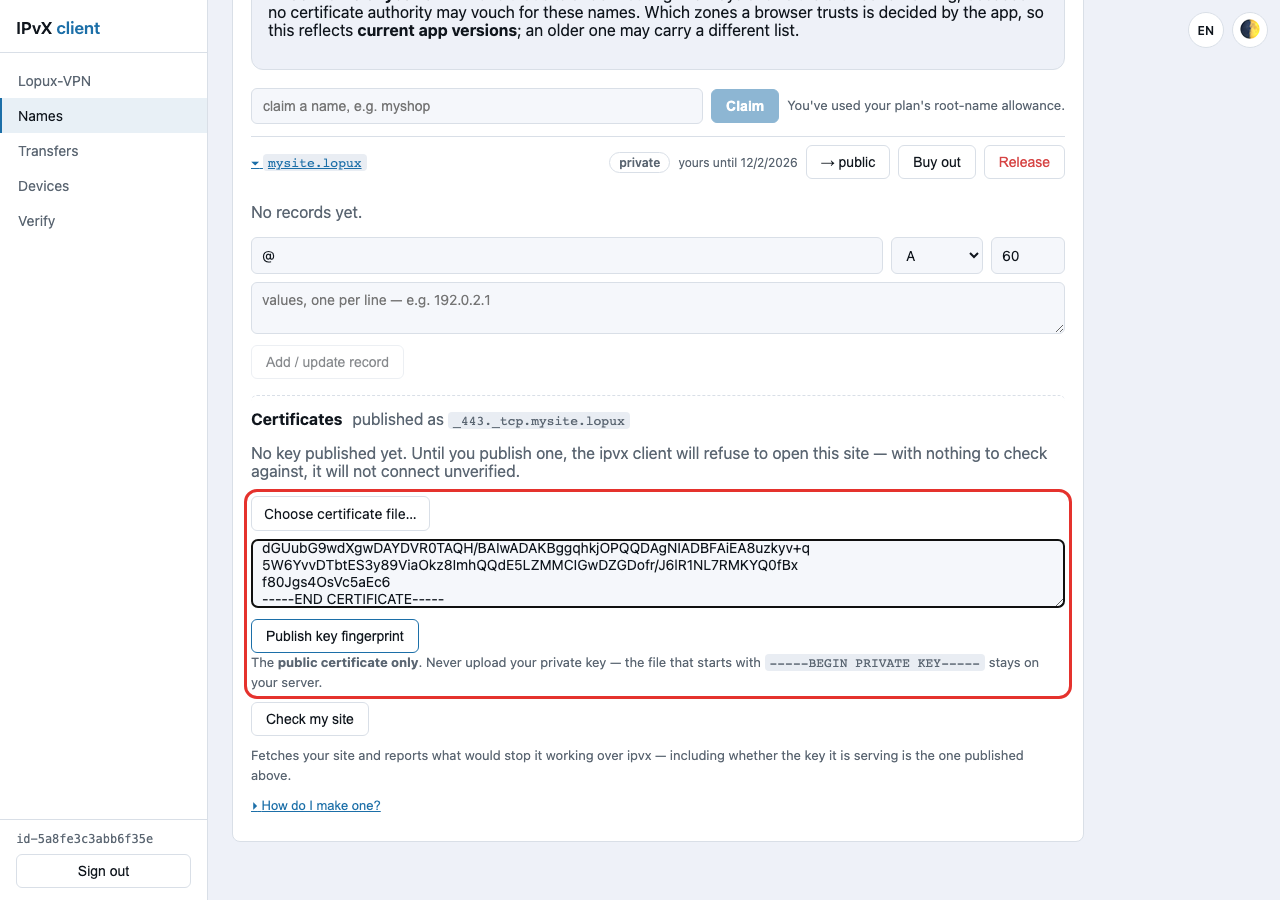
Press Publish key fingerprint. The portal reads the certificate, takes the SHA-256 of its public key, and writes it into your zone.
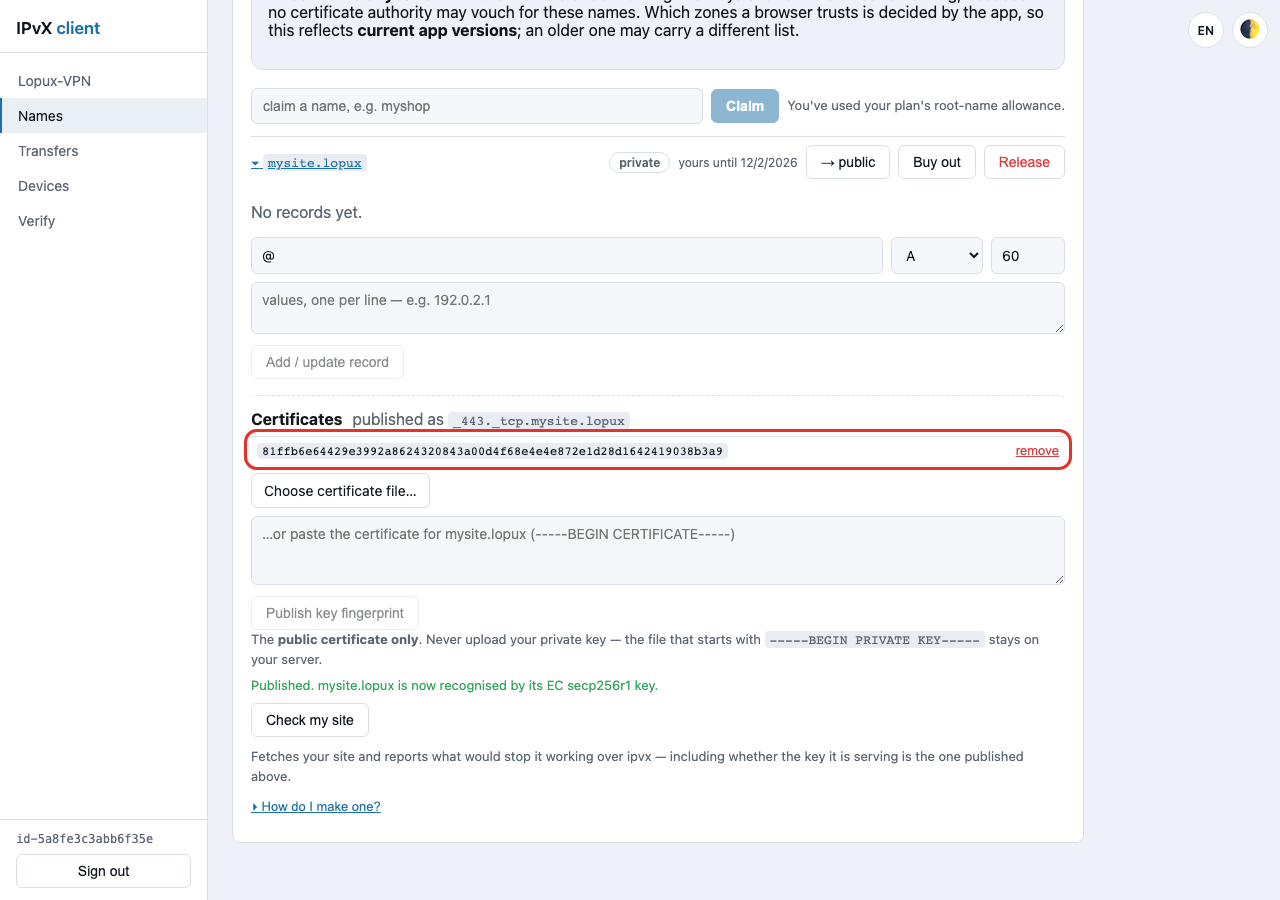
Compare that fingerprint with your own copy — they must match:
openssl x509 -in site.crt -noout -pubkey \
  | openssl pkey -pubin -outform der | openssl dgst -sha256
The panel is a front door to an ordinary record. The same value is in your record list as a TLSA record at _443._tcp, and you can see it there:
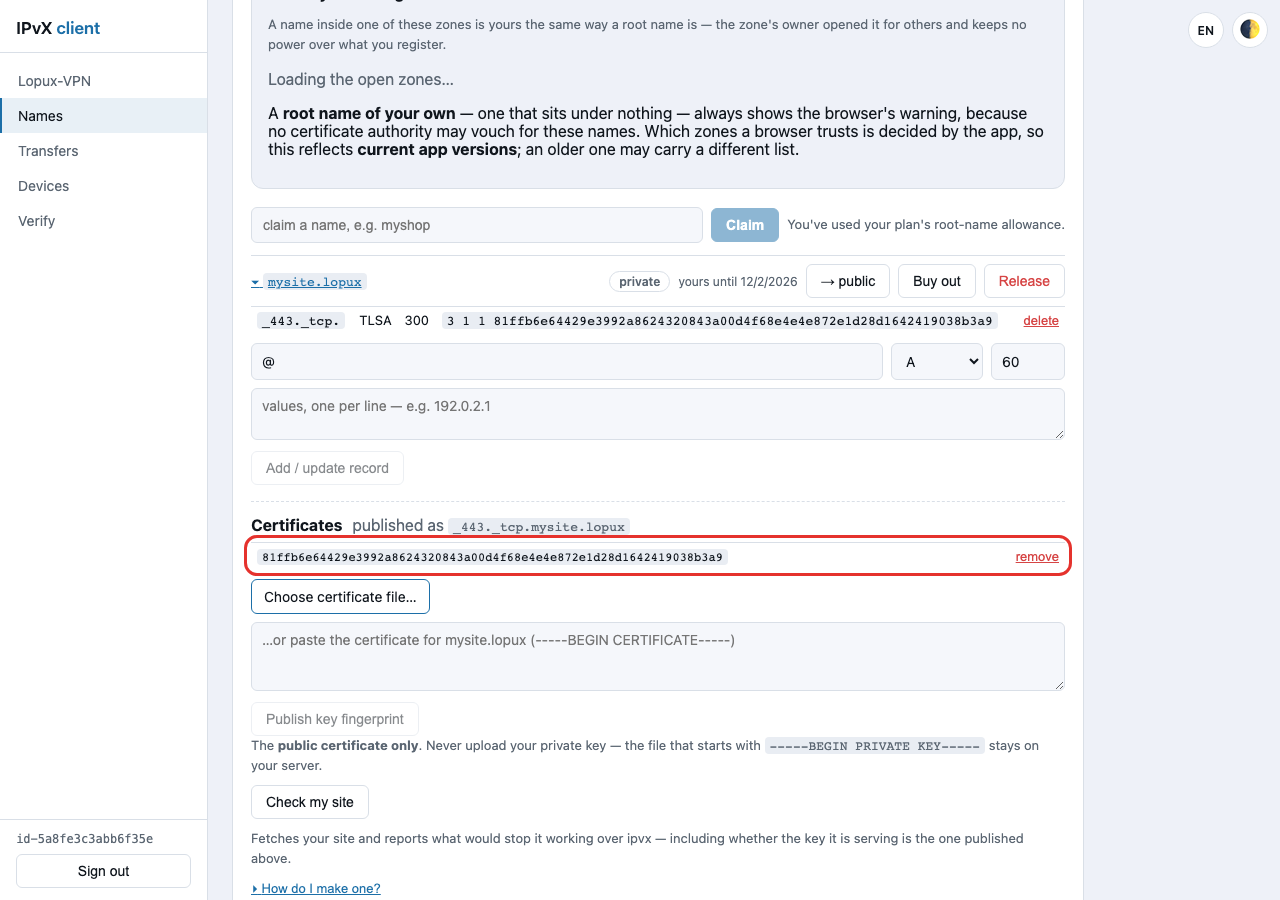
6. Point the name at your server
In the same view, add an A record whose value is your server's public address. @ means the name itself.
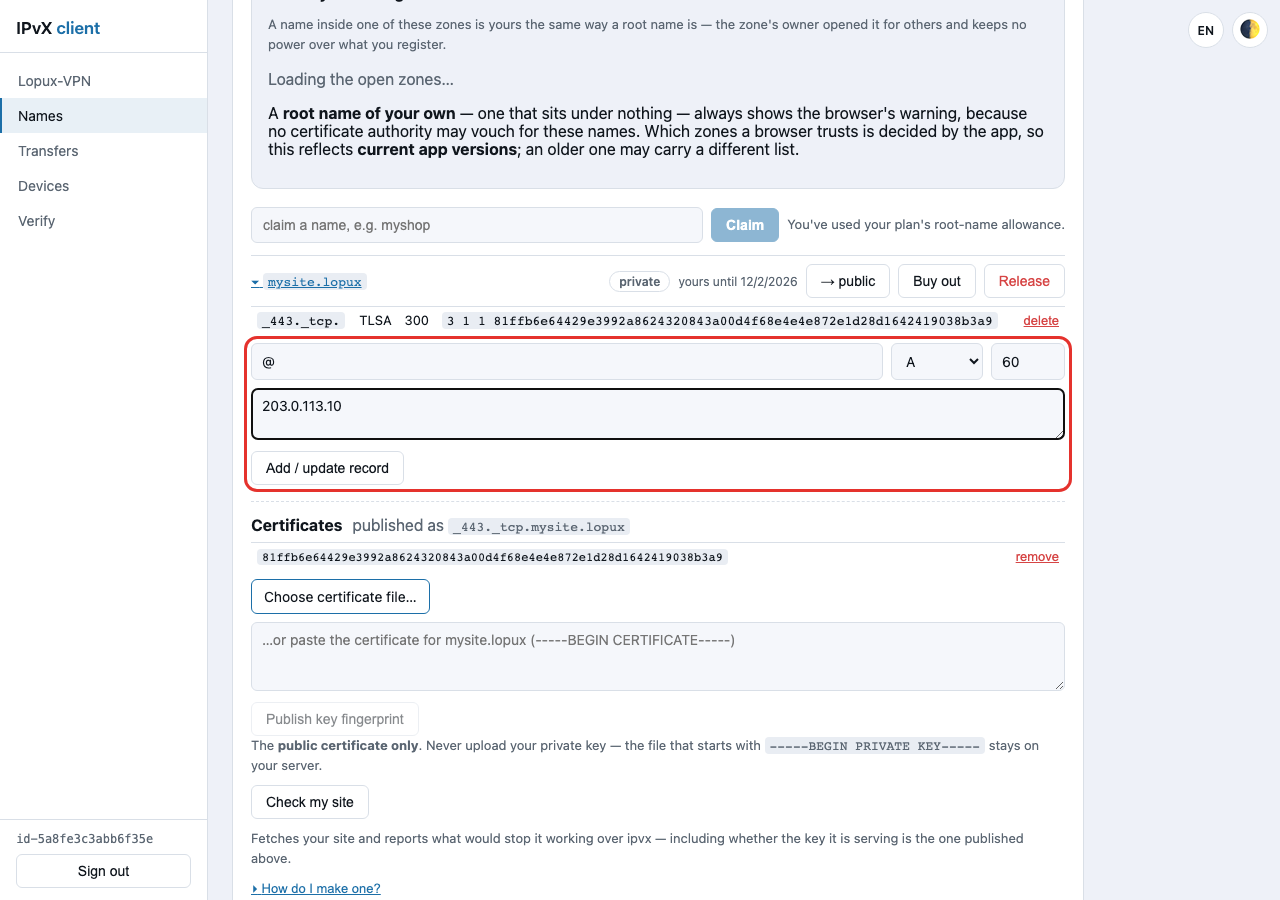
Now the zone carries both records, and together they are the whole of what a visitor's app needs: the A record says where your server is, the TLSA record says which key it must present.
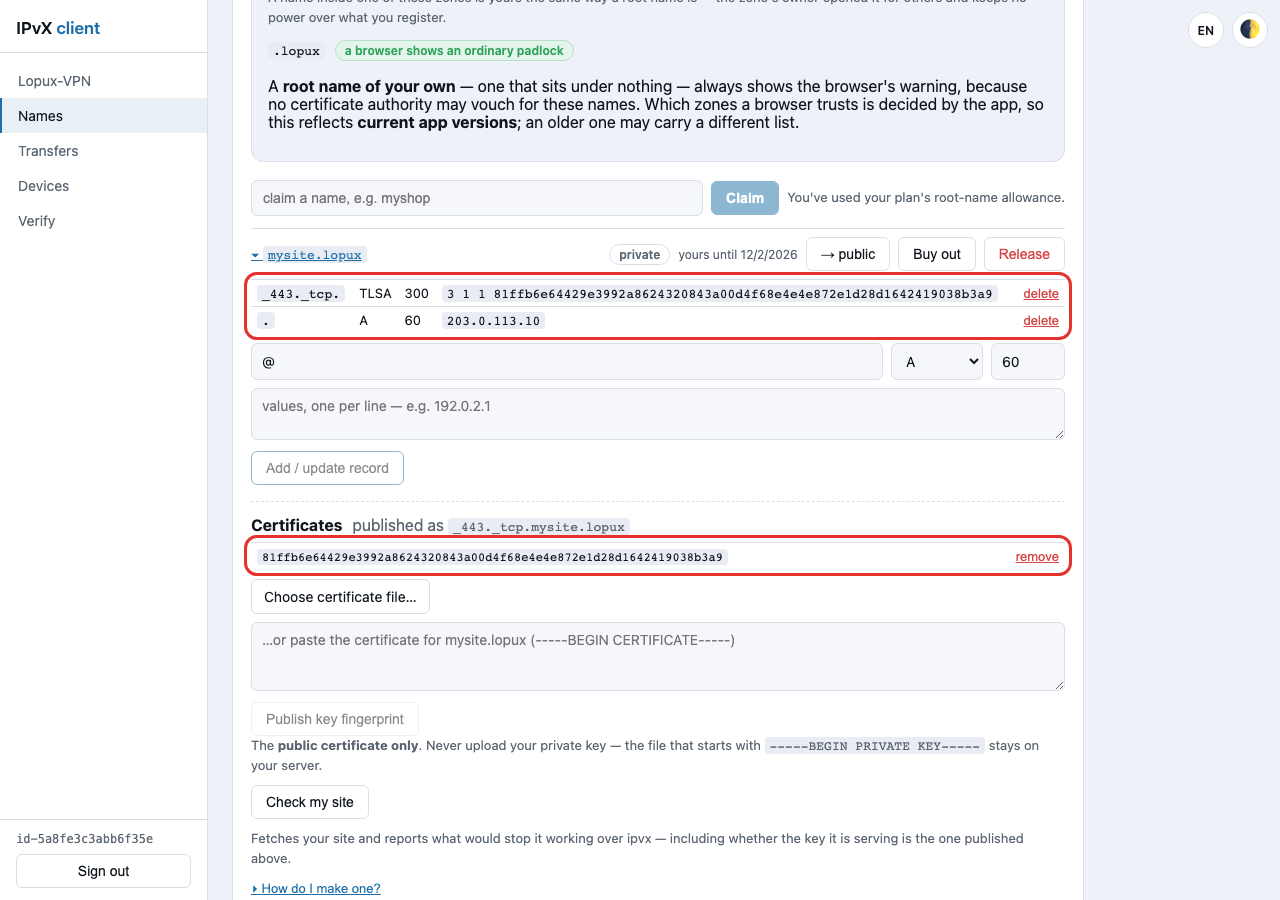
Allow about ten minutes before expecting a change to be visible everywhere. Two caches sit in the way — the resolver's and the app's — five minutes each.
7. Check it
The portal fetches your site the way a visitor would and reports what would stop it working: a key that does not match what you published, a missing fingerprint, an HSTS header, a redirect to https://, absolute self-links, or a server that did not answer.
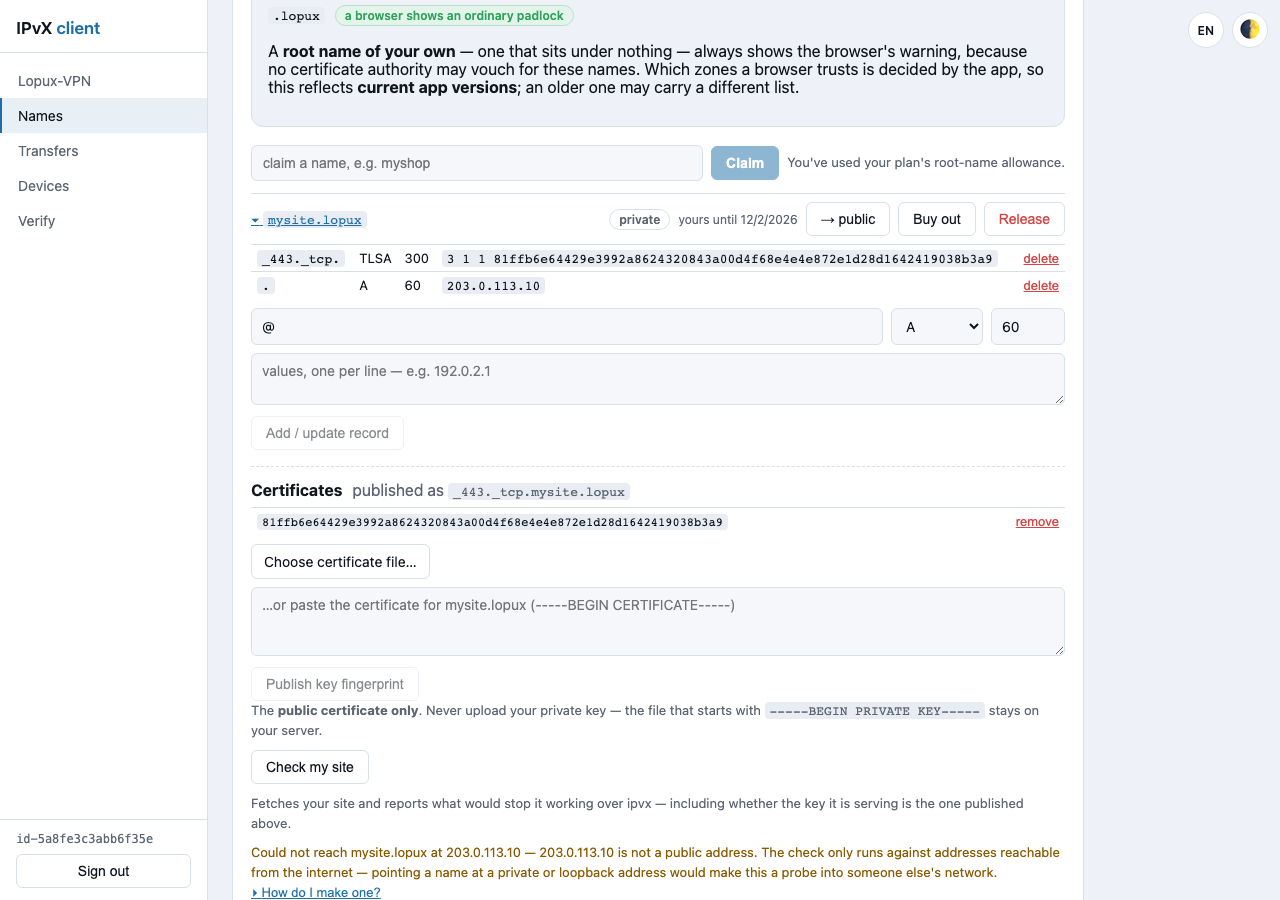
That screenshot is the check refusing to run: the address in this example is a documentation address, and the portal will not probe anything that is not publicly reachable — pointing a name at a private or loopback address would make the check a probe into somebody else's network. With a real server behind a real address it answers that the site looks fine, or names exactly what is wrong.
Two checks you can run yourself, and they are the two that matter most:
# no SNI — refused
openssl s_client -connect YOUR_ADDRESS:443 </dev/null

# your certificate
openssl s_client -connect YOUR_ADDRESS:443 -servername mysite.lopux </dev/null
The second one should hand you the certificate whose fingerprint you published. Take its key fingerprint the same way as in §5 and compare — if those two strings differ, every visitor is refused, and to them it looks exactly like an impersonation attempt.
8. What a visitor sees
A site that is set up correctly opens under its own name, like any other:
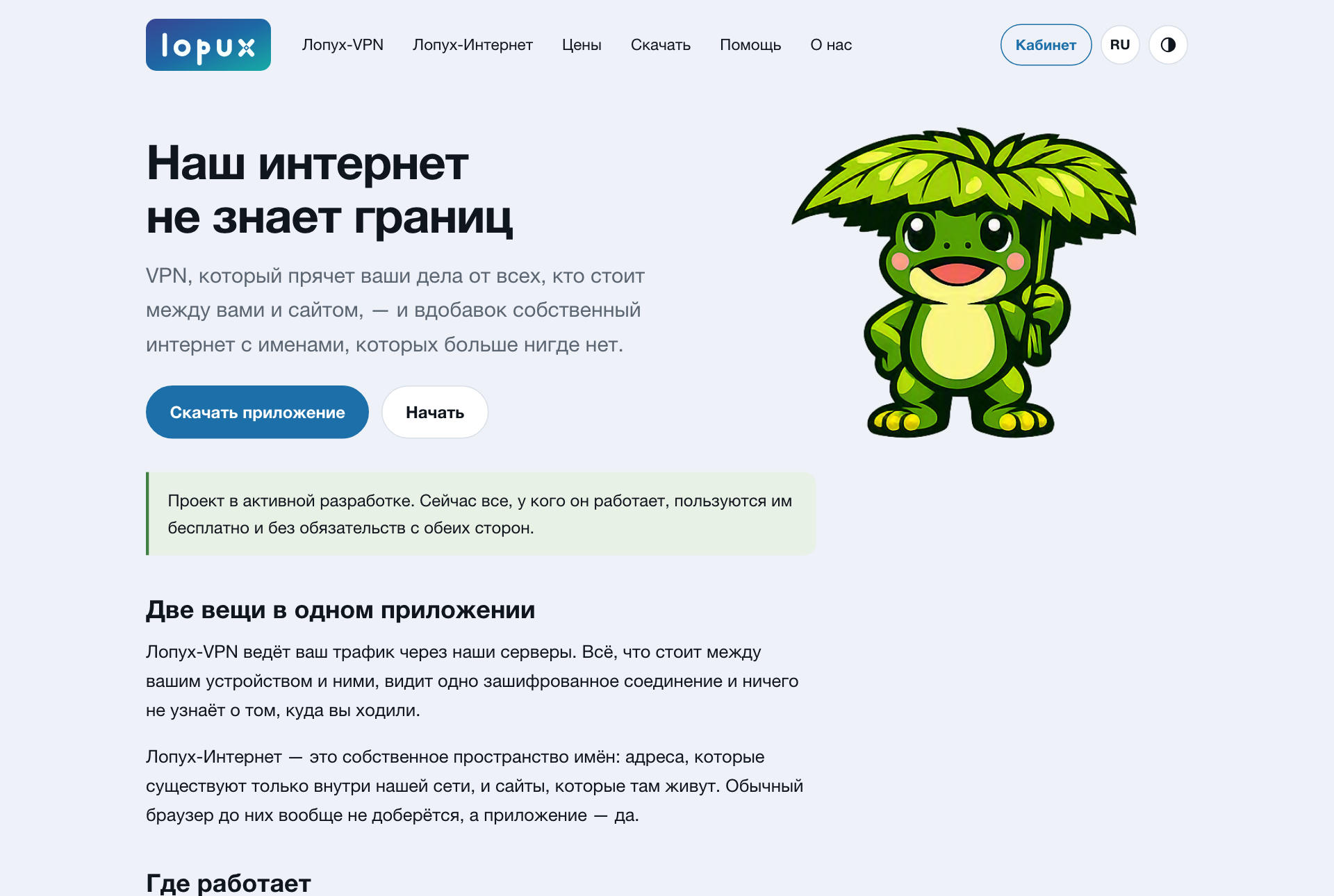
That is lopux.ipvx — this project's own site, which lives in the namespace the same way yours will and is deployed in exactly this shape. Its served key matches its published fingerprint, which is what lets an app open it without a word of warning.
What different visitors get:
| The visitor | What they see |
|---|---|
the app, and your name is inside an open zone like .lopux | an ordinary padlock, everything works |
| the app, and a root name of your own | the browser's certificate warning every time — the fingerprint is still checked underneath |
the app, http:// in the address bar | a plain-looking page; the hop to your server is still encrypted and still key-checked |
| no app | nothing. The name does not resolve outside Lopux-Internet |
The last row is the point of the namespace rather than a limitation. But note the row above it: your server is an ordinary public machine, and anyone can reach it by its address. The namespace does not hide it, and your certificate names your site to anyone who completes a handshake — which is what the SNI gate in §4 is for.
9. Looking after the key
Nothing here detects a stolen key; it only makes the binding between your name and your key authoritative. Someone holding your key authenticates perfectly until you publish a new fingerprint.
- keep
site.keyreadable only by the web server user, and out of the directory you serve; - back it up somewhere encrypted — losing it costs you a rotation, not your name;
- rotating is cheap, so do it on any suspicion. Publish the new certificate before switching: with two fingerprints published, either key is accepted, so there is no moment when your site is unreachable. Then switch the server, wait ten minutes, and remove the old one;
- removing a fingerprint is the revocation. No authority to ask, no waiting: within the cache window a visitor is refused rather than shown whoever holds the old key.
10. When something is wrong
The app names the failure instead of showing a blank page. What each one means:
| What the visitor is told | What it means | Whose move |
|---|---|---|
| No key fingerprint published for this name | your zone has no TLSA record | yours — §5 |
| This is not the site it claims to be | your server's key is not the published one | yours — you changed the certificate without publishing the new fingerprint |
| The site did not answer | the name and the key are fine, your server did not respond | yours — check the server and the A record |
| This page cannot work over plain http | absolute https:// links to your own site | yours — make them relative (§4) |
| This app needs an update to open this site | the visitor's app is older than your zone | theirs — they update; your site is fine |