
Split tunnelling: choosing what goes through the VPN
Normally everything your device sends goes through the tunnel. Split tunnelling lets you carve out exceptions — a banking app that distrusts foreign addresses, a printer on your own network, a work tool that only answers locally.
It is a paid-plan feature. On a free plan the control is not shown at all, and this guide will not match what you see.
It exists on the computer and on the phone. The screens look alike, and the rules they follow are the same — but where the app filter is applied differs, and that has consequences worth knowing (§5).
1. Two lists, each with two modes
There are two independent filters:
- Apps — by program on the computer, by installed app on the phone;
- Sites — domain names and IP ranges.
Each has a mode:
- Exclude — everything goes through the VPN except what you listed;
- Include — only what you listed goes through the VPN, everything else goes direct.
An empty list does nothing. Both lists empty, or the master switch off, means everything is tunnelled as usual.
2. The rule that decides: whatever goes direct, wins
When both filters have an opinion about the same connection, the exception wins: if either list says this connection should go direct, it goes direct.
| You set | What happens |
|---|---|
| a site excluded, from an app that is otherwise tunnelled | direct — the site is an exception |
| a site included, from an app you excluded | direct — the app is an exception too, and an exception wins |
| both lists excluded | the union of your carve-outs: everything tunnelled except app X and site Y |
| nothing listed | everything through the VPN |
The second row surprises people, so it is worth saying plainly: an "include" does not force something back into the tunnel. Include narrows what the VPN carries; it does not overrule an exclusion elsewhere. If you want a site to go through the VPN from a particular app, do not exclude that app.
3. On the computer
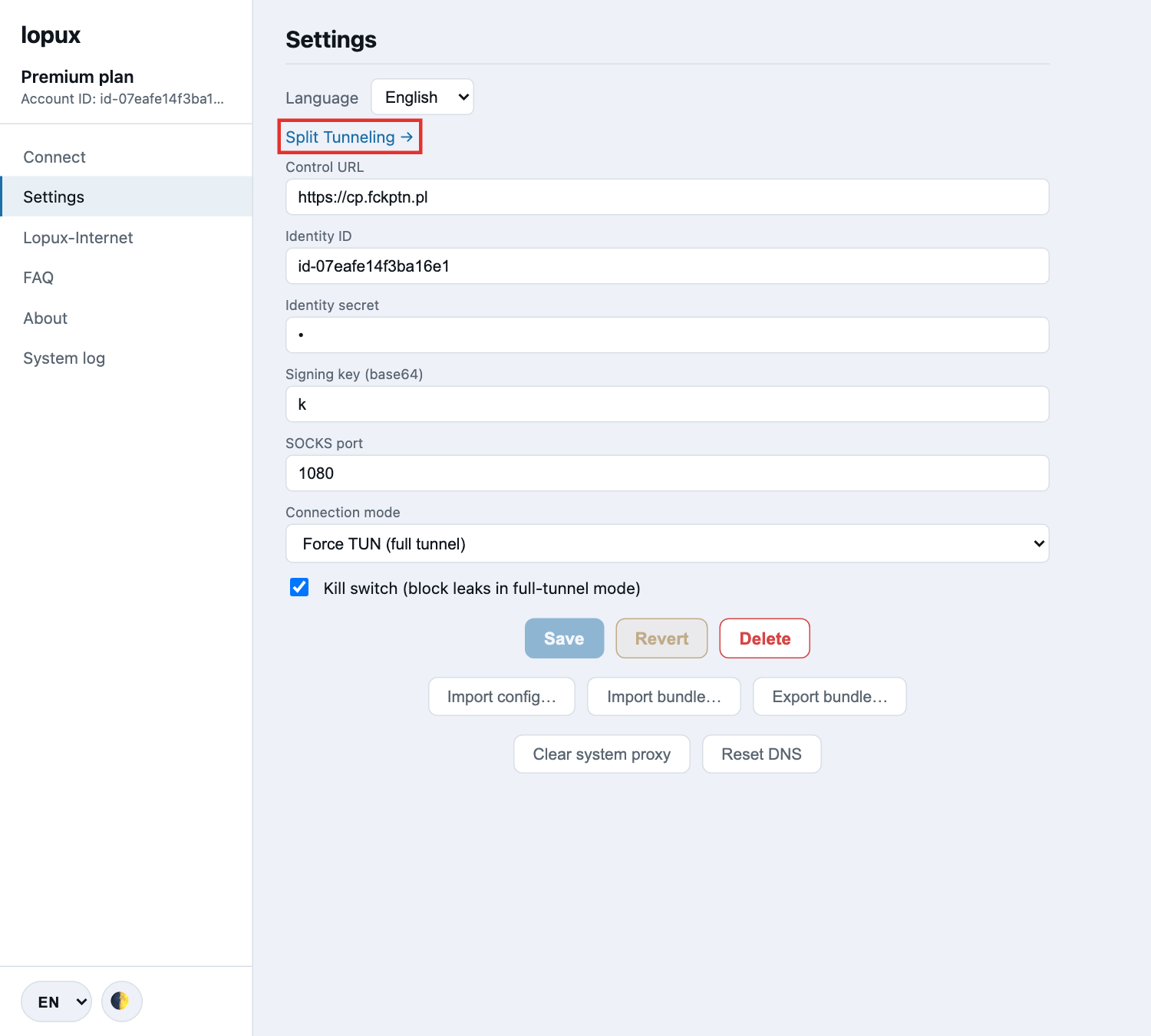
The control is in Settings, as a link to its own screen.
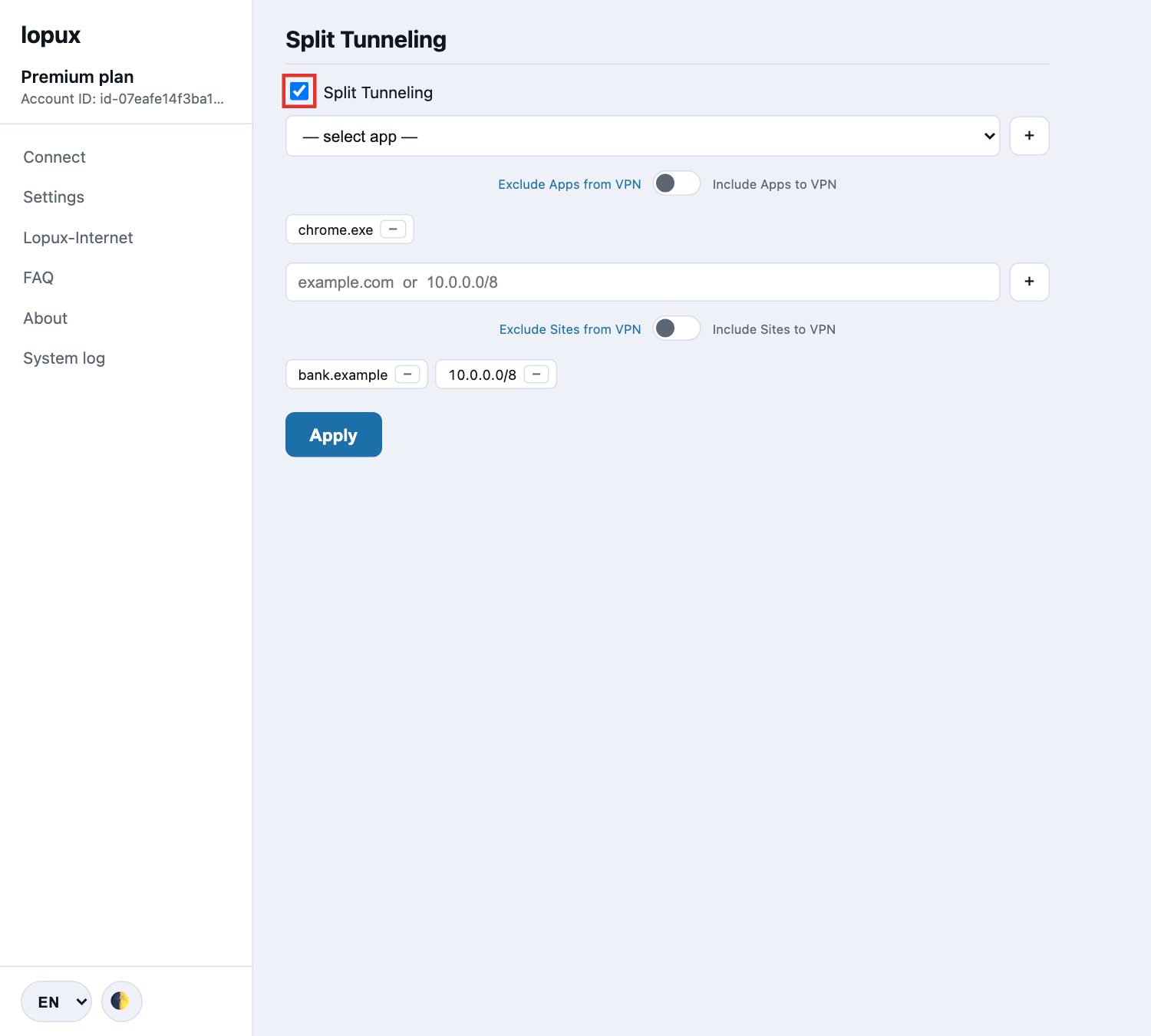
The master switch is at the top; below it the app list with its mode, then the site list with its mode, then Apply. Nothing takes effect until you press Apply.
Per-app rules need the full-tunnel mode. Attributing a connection to the program that made it is something only the full tunnel can do — in the proxy mode the app list is inert while the site list still works. If you are unsure which mode you are in, Settings shows it under Connection mode.
4. On the phone
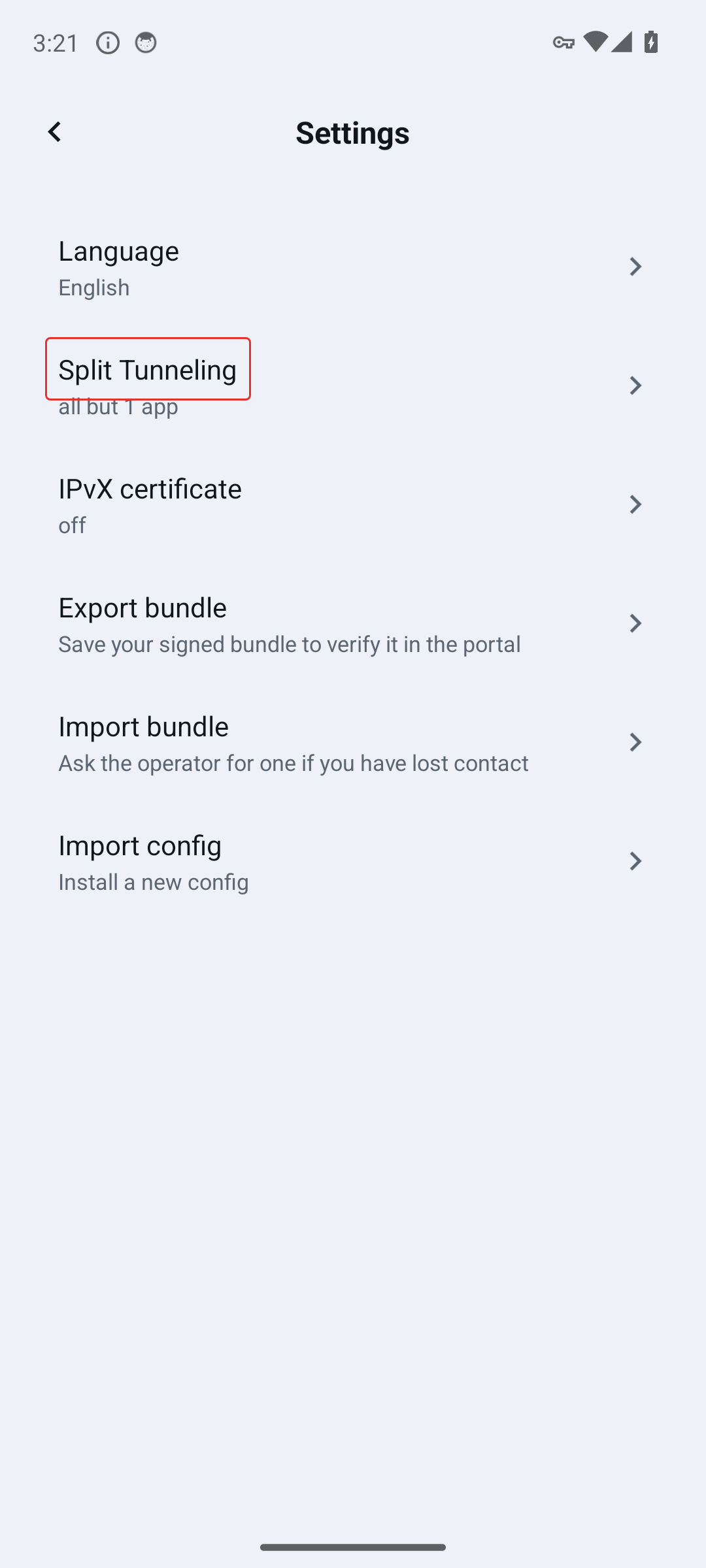
Menu → Settings → Split Tunneling.
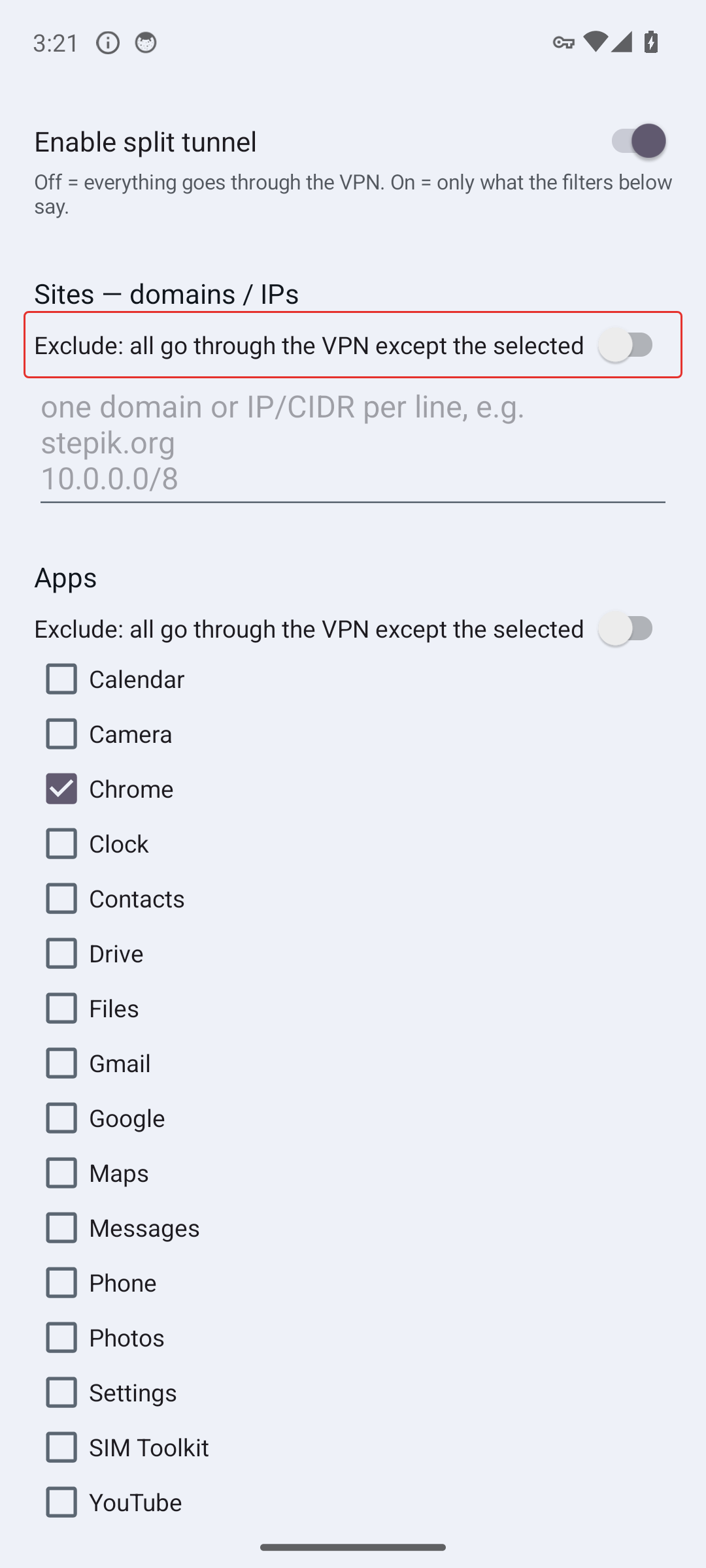
The same two lists in the same order: the mode, then the installed apps, then the sites.
The SAVE button is at the very bottom, under the sites box — and it is the only thing that stores your choice. Leaving the screen with the back gesture discards it.
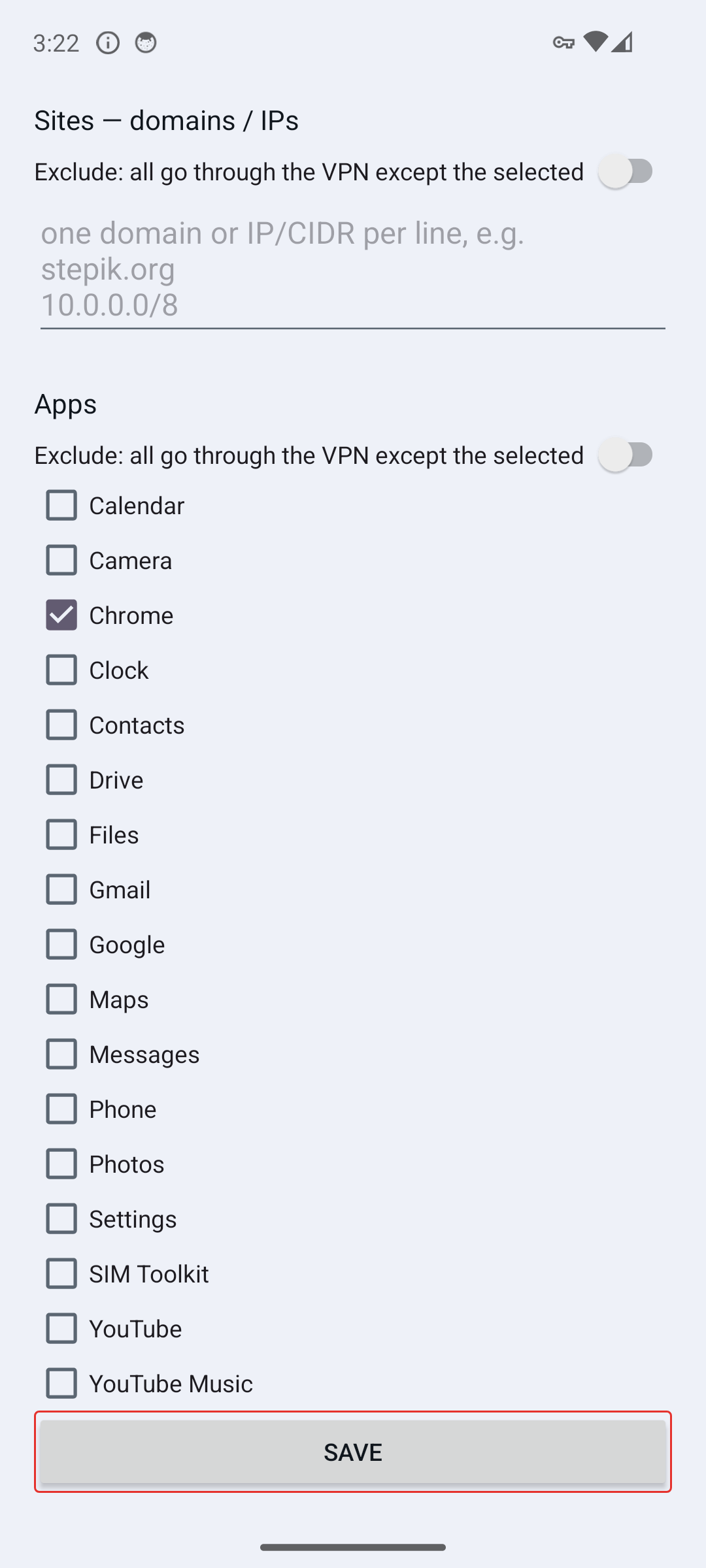
Your change reaches a running tunnel the next time it is built: reconnect after saving.
5. Where the two differ
The screens match and the deciding rule is the same. The machinery under them is not.
| Computer | Phone | |
|---|---|---|
| where the app filter is applied | a routing rule inside the tunnel | on the tunnel interface itself, by Android |
| does the app list need the full tunnel? | yes — inert in proxy mode | no, always available |
On the computer, an excluded app's traffic still enters the tunnel software and is sent back out by a rule. That is why the mode matters: only the full tunnel can tell which program opened a connection, so in proxy mode the app list does nothing at all while the site list keeps working.
On the phone Android applies the app list itself, at the interface, before anything of ours sees the traffic. An excluded app is outside the tunnel from the first packet. The practical effect is the same as on the computer — the app goes direct — but it happens a layer lower, which is why the phone needs no equivalent of the desktop's mode requirement.
6. What is worth putting in the lists
- things that must see your real location — a bank, a government service, a local delivery app;
- your own network — a printer, a NAS, a router's admin page. As addresses (
192.168.0.0/16,10.0.0.0/8), not names; - large local services you do not need protected, if you would rather not spend the tunnel on them.
And one thing worth keeping in the tunnel: anything you would not want your provider to see you using. An excluded connection is an ordinary connection — visible to your network, your provider, and anyone else on the path, exactly as if the VPN were not there. That is the whole point of the feature, and the whole cost of it.